Let’s be honest, fumbling for your phone, opening an app, and waiting for it to load just to see who’s at the front door feels a bit… dated. In a world where you can ask a little speaker for the weather, your security should be just as smart and effortless. That’s where learning How To Integrate Home Camera With Google Home transforms your security from a reactive tool into a proactive, seamless part of your daily life. It’s about more than just convenience; it’s about instant peace of mind, accessible with just the sound of your voice.
I’ve been in the home security game for over a decade, and I’ve seen technology evolve in incredible ways. The single biggest leap for user-friendliness has been the integration with smart home ecosystems like Google Home. It bridges the gap between having a camera and using your camera effectively. This guide, from us at Family Security 247, will walk you through everything you need to know, turning what might seem like a techy task into a simple weekend project.
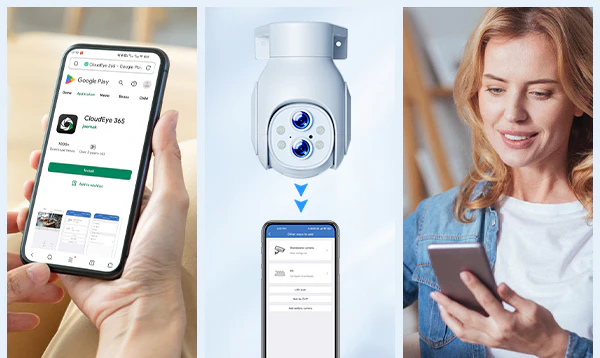
Why Even Bother Integrating Your Camera with Google Home?
That’s a fair question. Your camera app works fine, right? But think bigger. Integrating your camera unlocks a new level of command and control over your home’s security.
This isn’t just about a neat party trick. It’s about practical, everyday security enhancements. Imagine you’re cooking, your hands are covered in flour, and you hear a noise in the backyard. Instead of stopping everything to find your phone, you just say, “Hey Google, show me the backyard camera on the kitchen display.” Instantly, you have eyes on the situation. That’s real security.
Here’s what you gain:
- Voice-Activated Live Feeds: The most obvious benefit. Use simple voice commands to stream your camera’s feed to any Chromecast-enabled TV or Google Nest Hub display.
- Centralized Control: Manage and view all your compatible smart devices, including your cameras, from a single app—the Google Home app. No more jumping between different brand apps.
- Inclusion in Smart Home Routines: This is where the magic happens. You can incorporate your camera into Google’s “Routines.” For example, a “Bedtime” routine could lock your doors, turn off the lights, and automatically show you a live feed of the baby’s room camera on your bedroom’s Nest Hub.
- Enhanced Awareness: Get a quicker, more intuitive look at what’s happening around your property without breaking your stride.
The Groundwork: What You’ll Need Before You Start
Before we dive into the “how-to,” let’s make sure you have all your ducks in a row. A little prep work makes the whole process smooth as silk.
You’ll need four key things:
- A Compatible Security Camera: This is the most crucial part. Not every camera on the market plays nice with Google. Look for the “Works with Google” or “Works with Google Assistant” badge on the packaging or in the product description. Brands like Nest, Arlo, Wyze, Ring, and Eufy are generally a safe bet.
- A Google Nest or Google Home Device: This can be a smart speaker like the Google Nest Mini or a smart display like the Google Nest Hub. While you can use the Google Home app on your phone alone, having a smart display is what truly unlocks the video streaming feature. A Chromecast connected to a TV also works perfectly.
- A Stable Wi-Fi Network: Your camera and your Google device need to be on the same Wi-Fi network to communicate with each other. A strong, reliable signal is key for a smooth video stream.
- The Apps: You’ll need the camera manufacturer’s app (e.g., the Arlo app, the Nest app) and the Google Home app installed on your smartphone.
The Step-by-Step Guide on How to Integrate Home Camera with Google Home
Alright, let’s get down to business. I promise this is easier than assembling most flat-pack furniture. Follow these steps, and you’ll be up and running in minutes.
Step 1: Set Up Your Camera First
Before you even touch the Google Home app, you must fully set up your new security camera using its own native app. This means creating an account with the manufacturer, connecting the camera to your Wi-Fi network, and making sure you can see a live video feed within that app. Don’t skip this! Google Home doesn’t set up the camera; it just links to your existing, working camera account.
Step 2: Open the Google Home App
Once your camera is online and working in its own app, open the Google Home app on your smartphone or tablet.
Step 3: Add a New Device
- On the main screen, tap the “+” icon, usually located in the top-left corner.
- From the menu that appears, select “Set up device”.
- You’ll be presented with two options. Since your camera is already set up, you need to choose the option that says “Works with Google”. This is for linking existing services.
Step 4: Find Your Camera’s Brand
You will now see a long list of smart home brands. You can either scroll through the list or, much more easily, tap the search icon and type in the name of your camera’s brand (e.g., “Arlo,” “Wyze,” “Eufy”).
Step 5: Link Your Accounts
Once you select your brand, you’ll be redirected to a login page for that service. Enter the same username and password you created in Step 1 when you set up your camera. By doing this, you are giving Google permission to access and control your camera. Read the permissions and tap “Authorize” or “Allow.”
Step 6: Assign Your Camera to a Room
After you successfully link your accounts, the Google Home app will search for compatible devices. Your camera(s) should appear on the screen. Now, you just need to assign each camera to a room in your house (e.g., “Living Room,” “Front Door,” “Backyard”). This is important for voice commands later. Tap the camera, choose a room, and you’re done!
Congratulations! You’ve just learned how to integrate home camera with Google Home. Go ahead, try it out: “Hey Google, show the front door camera on the living room TV.”
|
Our Picks for the Best Home Camera in 2026
As an Amazon Associate, we earn from qualifying purchases.
|
||
| Num | Product | Action |
|---|---|---|
| 1 | Kasa Smart Indoor Pan-Tilt Home Security Camera, 1080p HD Dog Camera w/Night Vision, Motion Detection for Baby & Pet Monitor, Cloud & SD Card Storage, Works w/ Alexa & Google Home, 2.4G WiFi (EC71) |

|
| 2 | Ring Outdoor Cam (Stick Up Cam) | Weather-Resistant Outdoor Camera, Live View, Color Night Vision, Two-Way Talk, Motion alerts, Works with Alexa | White |
|
| 3 | WYZE Cam v4 (Latest Model), 2.5K AI Security Camera, Indoor/Outdoor Cameras for Home Security, Baby Monitor & Pet Camera, Vibrant Color Night Vision, No Subscription Required, Free Expert Help |
|
| 4 | Ring Battery Doorbell | Home or business security with Head-to-Toe Video, Live View with Two-Way Talk, and Motion Detection & Alerts (newest model), Venetian Bronze |
|
| 5 | TP-Link Tapo Pan/Tilt Security Camera for Baby Monitor, Pet Camera w/Motion Detection, 1080P, 2-Way Audio, Night Vision, Cloud & SD Card Storage, Works with Alexa & Google Home (Tapo C200) |
|
| 6 | TP-Link Tapo 2K Pan/Tilt Security Camera for Baby Monitor, Dog Camera w/Motion Detection, 2-Way Audio, Siren, Night Vision, Cloud & SD Card Storage, Works with Alexa & Google Home, 2-Pack (C210P2) |
|
| 7 | Blink Mini 2 — Home Security & Pet Camera(s) with HD video, color night view, motion detection, two-way audio, and built-in spotlight — 1 camera (Black) |
|
| 8 | 2K Cameras for Home Security-Outdoor/Indoor Camera for Dog/Cat/Pet/Nanny/Baby, Color Night Vision, White Light, Siren, 24/7 SD Recordings, Works with Alexa/Google Home, C1 (C1-White-2pack-2.4G) |
|
| 9 | WYZE Cam Pan v3, Indoor/Outdoor IP65-Rated 1080p Pan/Tilt/Zoom Wi-Fi Smart Home Security Camera with Color Night Vision, 2-Way Audio, Compatible with Alexa & Google Assistant, Free Expert Setup |
|
| 10 | Tapo TP-Link 1080P Indoor Security Camera for Baby Monitor, Dog Camera w/Motion Detection, 2-Way Audio Siren, Night Vision, Cloud & SD Card Storage, Works w/Alexa & Google Home C100 |
|
“Hey Google, Show Me the Backyard”: Pro Tips for Voice Commands
You’ve done the setup, now let’s master the commands. Being specific helps Google Assistant understand you better.
- Basic Command: “Hey Google, show [camera name].” (e.g., “show the Porch Cam”)
- Specific Display: “Hey Google, show [camera name] on [display name].” (e.g., “show the Driveway Cam on the Kitchen Hub”)
- Stopping the Feed: “Hey Google, stop,” or “stop casting.”
Expert Tip: Naming your cameras is crucial. Use simple, intuitive names. “Front Door Camera” is much better for voice recognition than “CAM-001a_v2.” You can rename your cameras anytime within the Google Home app settings for that device.
What If It Doesn’t Work? Common Troubleshooting Steps
Sometimes technology has a mind of its own. If you’re running into issues, don’t panic. Here are a few common hiccups and how to fix them.
Problem: “I can’t find my camera brand in the ‘Works with Google’ list.”
Solution: Double-check that your camera model is indeed compatible. Some older models from otherwise compatible brands may not support Google Home integration. A quick search for “[Your Camera Model] Google Home compatibility” should give you a definitive answer.
Problem: “Google says it can’t reach my camera.”
Solution: This is almost always a connectivity issue.
- First, check if you can view the camera’s live feed in its native app. If not, the problem is with the camera’s connection to your Wi-Fi, not Google Home. Reboot your camera and your router.
- Ensure your phone, Google device, and camera are all on the exact same Wi-Fi network. Some routers create separate 2.4GHz and 5GHz networks; make sure all devices are on one or the other.
Problem: “The video stream is very laggy or pixelated.”
Solution: This is a Wi-Fi signal strength issue. Your camera or your Chromecast/Nest Hub might be too far from your router. Consider moving your router to a more central location or investing in a Wi-Fi mesh system or extender to improve coverage.
Privacy and Security in a Connected Home
As a security professional, I can’t stress this enough: convenience should never come at the cost of security. When you connect devices, you create new pathways into your home network. It’s your job to secure them.
- Use a Strong, Unique Password: For both your Wi-Fi network and your camera account. Don’t reuse passwords from other services.
- Enable Two-Factor Authentication (2FA): This is non-negotiable. 2FA adds a second layer of security, usually a code sent to your phone, that prevents someone from accessing your account even if they steal your password. Both your Google account and your camera account should have 2FA enabled.
- Review Permissions: Be mindful of what permissions you grant when linking accounts. Stick to trusted, well-known brands.
“A common mistake I see is people using the same simple password for everything, including their camera accounts,” warns Dr. Alistair Finch, a leading smart home cybersecurity consultant. “The most secure smart home is one built on a foundation of unique, complex passwords and two-factor authentication for every single service.”
FAQs: Your Questions Answered
Q: Which home camera brands work best with Google Home?
A: Brands like Google Nest (which offers the most seamless integration), Arlo, Ring, Wyze, Eufy, and TP-Link Kasa are all very popular and generally have robust “Works with Google” support. Always check the specific model for compatibility before buying.
Q: Can I see a live feed on a TV without a smart display?
A: Yes! As long as you have a Google Chromecast device plugged into your TV’s HDMI port, you can ask Google Assistant to stream the camera feed directly to that TV.
Q: Can I use Google Home to talk through my camera’s two-way audio?
A: This feature is less common. Currently, it’s primarily supported on Google’s own Nest cameras. For most third-party cameras, the integration is limited to viewing the video feed.
Q: Why is my camera stream so delayed on my Nest Hub?
A: A slight delay of a few seconds is normal. The video has to travel from your camera to the manufacturer’s cloud server, then to Google’s servers, and finally to your display. A significant delay is usually caused by a slow Wi-Fi connection.
Q: Do I need a monthly subscription to integrate my camera?
A: No. The ability to integrate your camera with Google Home is free. However, many camera brands require a subscription to unlock premium features like cloud video storage, advanced motion detection, or activity zones. The basic live-streaming function should work without one.
Your Home, Smarter and Safer
Taking a few minutes to how to integrate home camera with Google Home is one of the highest-impact upgrades you can make to your smart home. It elevates your security system from a standalone gadget to a fully integrated part of your home’s central nervous system. You gain faster access, more intuitive control, and ultimately, a greater sense of security and peace of mind. Now, you’re not just watching over your home; you’re in command of it.