There’s nothing more frustrating than opening your home security app only to be greeted by a dreaded “Camera Offline” or “Cannot Connect” message. That little device, your digital watchdog, is suddenly blind, and your peace of mind takes a nosedive. Don’t panic. As a senior solutions expert at An Ninh Gia Dinh 247, I’ve seen it all. The good news is that most camera glitches are surprisingly easy to fix. This comprehensive Step By Step Home Camera Troubleshooting guide will walk you through the process, from the simplest checks to more advanced solutions, getting you back up and running in no time.
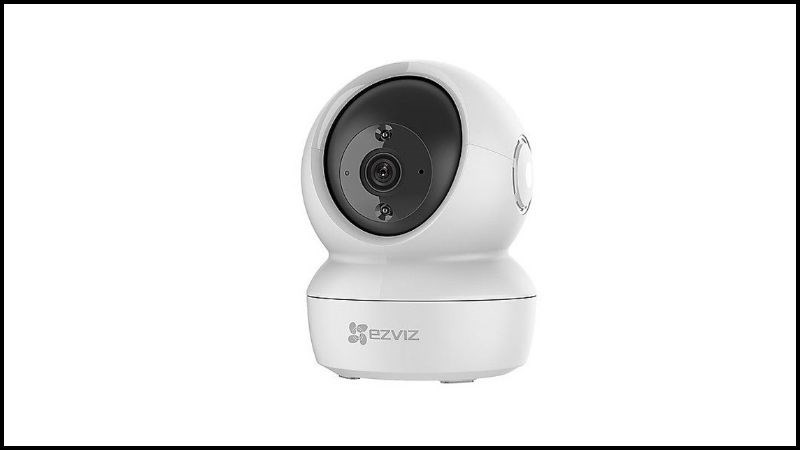
First Things First: The Basic Power and Connection Checklist
Before you start unscrewing things or resetting your entire network, let’s cover the absolute basics. You’d be amazed how often the solution is right in front of you. It’s the tech equivalent of checking if the TV is plugged in.
- Is it powered on? Check the power adapter at both the camera end and the wall outlet. Is the outlet itself working? Try plugging a lamp into it to be sure.
- Is your internet working? Grab your phone or laptop. Can you browse the web while connected to the same Wi-Fi network your camera uses? If not, the problem isn’t your camera; it’s your internet connection.
- Is your router on? Look at your Wi-Fi router. Are the lights blinking as they normally do? A quick power cycle of your router (unplugging it for 30 seconds and plugging it back in) can solve a multitude of connectivity sins.
Your Go-To Step by Step Home Camera Troubleshooting Flow
If the basics check out and your camera is still on strike, it’s time to dig a little deeper. Follow these steps in order. Don’t skip ahead, as the solution is often in an earlier step than you’d think.
- Perform a Full Power Cycle (The Right Way)
This is more than just turning it off and on. A proper power cycle clears the device’s temporary memory (its cache), which can get cluttered and cause connection issues.- Unplug your home camera from the power source.
- Wait for a full 60 seconds. Don’t rush this part. It needs time to fully discharge.
- Plug the camera back in and give it a few minutes to fully reboot and try to reconnect to the network.
- Check Your Wi-Fi Signal Strength and Position
Your camera needs a strong, stable Wi-Fi signal to stream video. Think of it like a cell phone call in a bad reception area—it’s going to drop.- Distance is Key: Is the camera too far from your router? Wi-Fi signals get weaker through walls, floors, and large appliances like refrigerators or microwaves.
- Interference: Other electronic devices can interfere. Try to keep your camera and router away from cordless phones, baby monitors, and microwave ovens.
- Test the Signal: Take your smartphone to the exact spot where your camera is mounted. How many Wi-Fi bars do you have? If it’s only one or two, you’ve likely found your culprit. You may need a Wi-Fi extender to boost the signal.
- Inspect the Camera’s Status Light
That little blinking light on your camera is its way of talking to you. It’s a diagnostic tool. The meaning of the colors and patterns varies by brand, but here are some common ones:- Solid Blue or Green: Usually means it’s connected and working properly.
- Blinking Blue or Green: Often indicates it’s in the process of connecting to the network.
- Blinking or Solid Red/Amber: This is typically the trouble indicator. It usually means it failed to connect to Wi-Fi or has another error.
Check your camera’s manual or the manufacturer’s website to decode what its specific light language means. This can give you a massive clue about the root of the problem.
- Review Your App and Account
Sometimes the hardware is fine, but the software has a hiccup.- Log Out and Log In: A simple but effective trick. Log out of the camera’s mobile app completely, then log back in.
- Check for App Updates: Head to your phone’s app store. Is there an update available for your camera app? Outdated software can cause compatibility and connection issues.
- Correct Wi-Fi Network: Did you recently change your Wi-Fi password or network name (SSID)? If so, your camera is still trying to connect to the old, non-existent network. You’ll need to go through the setup process in the app again to connect it to the new network.
- The Critical Role of Firmware
Firmware is the built-in software that makes your camera’s hardware work. Manufacturers release updates to fix bugs, patch security holes, and improve performance. An outdated firmware can absolutely cause your camera to go offline. Ensuring your device is up to date is a key part of any step by step home camera troubleshooting process. To learn more about this crucial maintenance task, you might be interested in our guide on how to update home camera firmware. A proper update can often be the magic bullet that solves persistent connectivity issues. - The Last Resort: The Factory Reset
If you’ve tried everything above and are still stuck, it’s time to consider a factory reset. This will wipe all your custom settings, including Wi-Fi credentials, and return the camera to its out-of-the-box state.- Important: You will have to set the camera up from scratch again, just like you did the first day.
- How to do it: Look for a tiny, recessed button on the camera, often labeled “Reset.” You’ll usually need a paperclip or a SIM card tool to press and hold it for 10-15 seconds (while the camera is powered on) until you hear a chime or see the status light change.
Advanced Troubleshooting: When the Usual Steps Fail
Sometimes, the problem lies outside the camera itself. If the primary troubleshooting steps don’t resolve the issue, it’s time to look at your broader network environment.
Could Your Internet Provider Be the Issue?
It’s less common, but some Internet Service Providers (ISPs) have security settings or firewalls on their routers that can block the ports a security camera needs to communicate with its servers. This is a more technical issue, and you may need to contact your ISP’s support line and ask if they are blocking any ports required by your camera’s brand.
Has the Hardware Simply Failed?
Like any electronic device, cameras don’t last forever. If your camera has been exposed to extreme temperatures, moisture, or a power surge, the internal components may have been damaged. If the camera shows no signs of life at all (no lights, no sounds) even when plugged into a confirmed working outlet, it might unfortunately be time for a replacement.
An Expert’s Take
“Many users see troubleshooting as a hassle, but I see it as essential security maintenance,” notes David Chen, a leading cybersecurity analyst. “A camera that’s offline isn’t just an inconvenience; it’s a security blind spot. Regularly going through these checks and, most importantly, keeping your firmware updated, not only ensures reliability but also protects you from the latest digital threats.”
Frequently Asked Questions (FAQ)
Why does my home camera keep going offline?
The most common reasons are a weak Wi-Fi signal, a temporary internet outage, or the camera needing a simple reboot. Start by moving your router closer to the camera or vice-versa, and then perform a power cycle on both your router and the camera.
What does a blinking red light on my security camera mean?
While it varies by brand, a blinking red light almost always indicates a connection problem. It typically means the camera is powered on but cannot successfully connect to your Wi–Fi network. Check your Wi-Fi password in the app and ensure your router is functioning correctly.
Do I need to update my camera’s firmware?
Absolutely. Firmware updates are crucial. They fix bugs that can cause connection drops, enhance performance, and, most importantly, patch security vulnerabilities that could be exploited by hackers. Always install updates as soon as they are available.
How do I perform a step by step home camera troubleshooting check if I’m not at home?
First, check the camera’s app for any error messages. Next, use another smart home device app (like for a smart plug or light) to see if your home network is online. If it is, the issue is likely isolated to the camera. You can try power cycling it remotely if it’s plugged into a smart plug.
Will resetting my camera delete my saved video clips?
It depends on your service. If your clips are stored in the cloud (on the manufacturer’s servers), a factory reset of the camera will not delete them. However, if your video is stored locally on a microSD card in the camera, a reset could format the card, erasing the footage. Always back up local footage before a reset if possible.
Your Peace of Mind is Worth the Effort
Walking through a step by step home camera troubleshooting process might seem a bit tedious, but it empowers you to be your own first line of technical support. By understanding these common issues and their solutions, you can quickly restore your eyes on your home and regain that invaluable sense of security. At An Ninh Gia Dinh 247, we believe that a reliable security system is the foundation of a safe home, and ensuring your camera stays connected is the most important step of all.