Alright, let’s talk home security. You’ve just brought home a shiny new smart camera, and you’re picturing that sweet, sweet peace of mind. You’ll be able to check on your pets from the office, see who’s at the door without leaving the couch, and just generally feel more secure. But then you open the box, and you’re met with a camera, a few screws, and a manual that looks like it’s written in another language. Don’t sweat it. Learning How To Install Home Camera Step By Step is way easier than you think, and I’m here to walk you through it, just like I’ve done for hundreds of families. As a Senior Solutions Expert, I’ve seen it all, and my goal is to get you from “boxed up” to “fully protected” in no time.
Beyond the initial physical setup, maintaining the long-term security of your device is absolutely paramount. Hackers are always looking for new vulnerabilities, and manufacturers are constantly releasing patches to stay one step ahead. It’s a critical part of ownership that many people overlook. To get a better grasp of this ongoing responsibility, it’s worth understanding how to update home camera firmware, as this process is your first line of defense against potential threats.
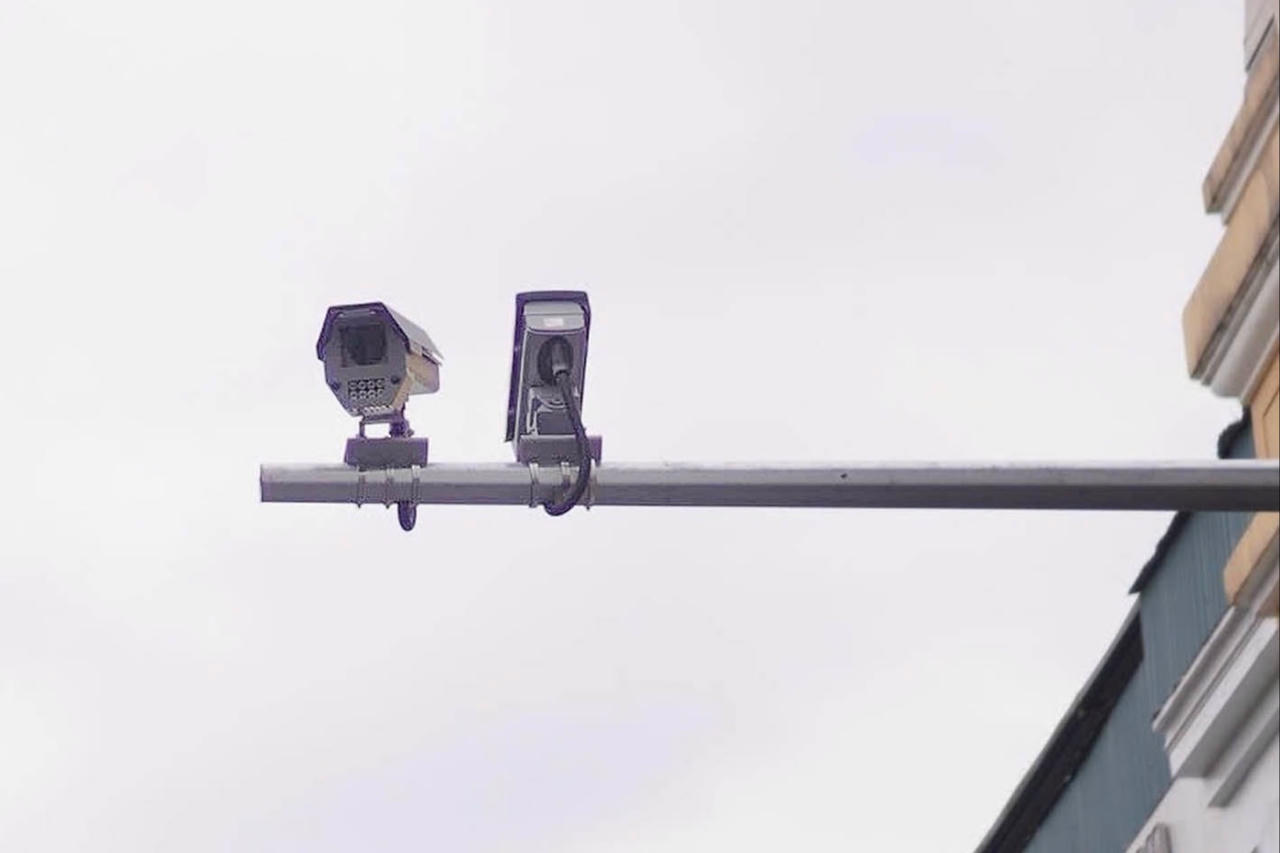
Why You Need a Home Camera, Anyway?
First things first, let’s quickly touch on why this little device is such a game-changer. It’s not just about catching burglars red-handed, though that’s certainly a plus. A home camera is your extra set of eyes. It’s for:
- Deterring Trouble: The mere sight of a camera can make a potential intruder think twice and move on to an easier target.
- Checking In: See if the kids got home from school safely, what the dog is really doing on your new sofa, or if that important package has arrived.
- Peace of Mind: When you’re away on vacation, being able to pull up a live feed of your home on your phone is incredibly reassuring. It transforms worry into tranquility.
The Lowdown on Different Home Cameras
Before we get to the nuts and bolts, it helps to know what you’re working with. Most home cameras fall into a few simple categories.
Wired vs. Wireless
Think of it like this: a wired camera is like a desktop computer. It’s plugged into a power source and often connected directly to your internet router. It’s incredibly reliable but less flexible in where you can place it. A wireless camera is like a laptop. It connects to your Wi-Fi and is often battery-powered, so you can place it almost anywhere. The trade-off? You’ll need to remember to recharge it.
Indoor vs. Outdoor
This one’s pretty self-explanatory. Outdoor cameras are built tough. They’re weatherproof and designed to withstand rain, sun, and everything in between. Indoor cameras are typically smaller, more discreet, and designed to blend in with your home decor.
The Main Event: How to Install Home Camera Step by Step
Ready to roll up your sleeves? Fantastic. Grab your new camera, your smartphone, and maybe a screwdriver. We’re about to bring your home security to the next level.
Step 1: Planning and Unboxing
Before you drill a single hole, take a moment to plan. Unbox everything and make sure all the parts are there. Charge the camera if it’s battery-powered. Now, walk around your house and think about what you want to see. The goal is to cover key entry points and high-traffic areas.
Step 2: Choosing the Perfect Spot
Placement is everything. A poorly placed camera is almost as useless as no camera at all.
Where should I place my indoor camera?
For indoor cameras, aim for a high corner of a room. This gives you the widest possible view and keeps the camera out of easy reach. The living room, kitchen, or a main hallway are all excellent choices. Pro tip: Try to avoid pointing it directly at a bright window, as the backlight can wash out the image during the day.
What’s the best height for an outdoor camera?
For outdoor cameras, the sweet spot is typically about 8-10 feet (around 3 meters) off the ground. This is high enough to be out of the reach of a casual vandal but low enough to capture clear facial details. Point it towards your front door, back door, driveway, or any vulnerable ground-floor windows.
Step 3: Mounting the Camera
Most cameras come with a mounting bracket and screws.
- Mark the spot: Hold the bracket where you want it and use a pencil to mark where the screws will go.
- Drill pilot holes: If you’re drilling into drywall or wood, it’s a good idea to drill small pilot holes first. This makes putting the screws in much easier. If you’re mounting on masonry, you’ll need to use the included wall anchors.
- Screw in the bracket: Secure the mounting bracket to the wall.
- Attach the camera: Most cameras either screw or clip onto the bracket. Attach it securely and point it in the desired direction.
Step 4: Powering It Up
If it’s a wired camera, now’s the time to run the power cable. Try to route it along baseboards or door frames to keep it neat. If it’s a wire-free, battery-powered model, just make sure it’s fully charged and pop it into place.
Step 5: The Software Setup – Connecting to Wi-Fi
This is where the magic happens.
- Download the App: Find the manufacturer’s app on the Apple App Store or Google Play Store and download it to your smartphone.
- Create an Account: You’ll need to create an account to manage your camera.
- Add Your Camera: Follow the in-app instructions. This usually involves pressing a “sync” button on the camera and scanning a QR code with your phone.
- Connect to Wi-Fi: The app will then ask for your home Wi-Fi password. Type it in carefully. This is how the camera sends video to your phone.
Within a few minutes, you should see a live feed from your camera right on your phone screen. Success!
Step 6: Fine-Tuning Your Settings
Don’t stop there! The final step is to customize the settings. Go into the app and adjust things like:
- Motion Sensitivity: You don’t want a notification every time a leaf blows by. Adjust the sensitivity until you’re only getting alerts for significant movement.
- Activity Zones: Most apps let you draw “zones” to monitor. This is great for focusing on a doorway while ignoring a busy street in the background.
- Notification Schedule: Set a schedule so you only receive alerts when you’re away from home or at night.
Let’s Talk Privacy: Securing Your Security Camera
A camera is meant to protect you, so the last thing you want is for it to become a vulnerability. Securing your device is non-negotiable.
“Treat the password for your Wi-Fi network and camera app like your house key. You wouldn’t leave it under the doormat, so don’t use ‘Password123’. A strong, unique password is the single most important step you can take to secure your smart home.” – Dr. Alex Chen, Cybersecurity Analyst
Here’s a quick checklist:
- Use a Strong, Unique Password: I can’t stress this enough. Use a mix of upper and lowercase letters, numbers, and symbols.
- Enable Two-Factor Authentication (2FA): If offered, always turn this on. It means that even if someone steals your password, they can’t log in without a second code from your phone.
- Keep Firmware Updated: Manufacturers release updates to patch security holes. Always install them promptly.
- Be Mindful of Placement: Think twice before placing cameras in private areas like bedrooms or bathrooms.
Frequently Asked Questions (FAQ)
Do I need a subscription for my home camera?
It depends. Many cameras offer free basic features like live streaming and motion alerts, but require a monthly subscription for advanced features like cloud video storage or person detection. Always check the subscription model before you buy.
Can I install a home security camera myself?
Absolutely! Most modern Wi-Fi cameras are designed for easy DIY installation. As this guide on how to install home camera step by step shows, you typically only need a few basic tools and a smartphone.
How much internet speed do I need for a security camera?
A good rule of thumb is to have at least 2 Mbps of upload speed per camera. If you have multiple cameras streaming in high definition, you’ll need a more robust internet plan.
Can security cameras record without Wi-Fi?
Some can. Cameras with a local storage option, like a microSD card slot, can continue to record footage even if the Wi-Fi goes down. However, you won’t be able to view the live feed or receive notifications on your phone until the connection is restored.
How do I hide the wires for my security camera?
For a clean look, you can use cable concealers or raceways that stick to your wall and can be painted to match. For a truly professional installation, you can run the wires inside the wall, but this is a more complex job.
Your Home, Safer and Smarter
And there you have it. You’ve gone from a box of parts to a fully functional security system. By following these instructions, you’ve not only enhanced your home’s security but also gained a powerful tool for staying connected to what matters most. Remember, the goal isn’t to live in fear, but to live with confidence. Now that you know how to install home camera step by step, you’re one giant leap closer to achieving that perfect peace of mind. Welcome to a safer, smarter home.