Let’s be honest, that little blinking light on your home security camera brings a certain level of comfort. But what happens to the footage it captures? If your camera only records to a local SD card, you’re leaving a critical vulnerability open. A savvy intruder could simply steal the camera, and poof—all your evidence is gone. That’s why knowing How To Set Up Cloud Storage For Home Camera systems isn’t just a tech upgrade; it’s a fundamental step toward real security and peace of mind. It’s the digital equivalent of a fireproof safe for your most important recordings.
As a Senior Security Solutions expert, I’ve seen it all. I’ve helped countless families move from a false sense of security to a truly robust setup. The difference-maker, time and time again, is a secure, off-site backup for their video footage. So, let’s walk through this together. It’s easier than you think, and the benefits are a total game-changer.
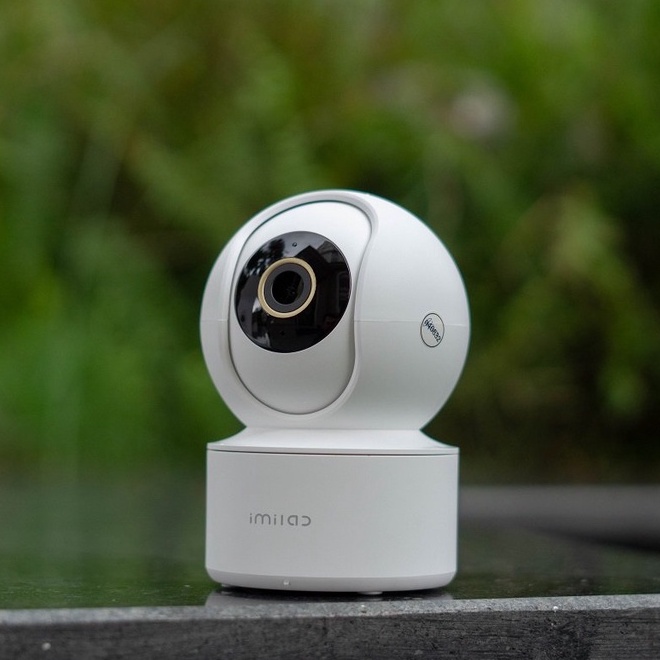
Why Ditch Local Storage for the Cloud?
Before we dive into the “how,” let’s quickly cover the “why.” You might be thinking, “My camera came with an SD card slot. Isn’t that enough?” In some low-risk scenarios, maybe. But for genuine security, the cloud is king.
Here’s a simple breakdown:
- Theft-Proof Evidence: As I mentioned, if a burglar steals your camera, they also steal your SD card. With cloud storage, the footage is instantly uploaded to a secure server the moment it’s recorded. The evidence is safe, no matter what happens to the physical device.
- Access from Anywhere, Anytime: Are you on vacation in another country and want to check a motion alert from three days ago? With local storage, that’s impossible. With the cloud, all your footage is accessible from your smartphone or web browser, 24/7.
- No Risk of Data Corruption or Failure: SD cards can fail. They get corrupted, they wear out, and they can be accidentally formatted. Cloud servers are built with multiple redundancies, meaning your data is professionally managed and protected from technical failure.
- Expanded Features: Many smart features, like advanced person detection, package recognition, and customizable activity zones, are often tied to a brand’s cloud subscription plan.
Think of it like this: an SD card is like a diary you keep on your bedside table. Cloud storage is like having that same diary securely backed up in a Swiss bank vault.
The Ultimate Checklist Before You Start
Jumping in without a little prep can lead to frustration. Trust me, a few minutes of preparation saves hours of headaches later. Before you even think about how to set up cloud storage for home camera feeds, run through this quick checklist.
- A Strong and Stable Wi-Fi Signal: Cloud storage relies on uploading video files. A weak or spotty Wi-Fi connection at your camera’s location will result in failed uploads, pixelated video, and connection drops. Run a speed test in the exact spot you plan to install the camera.
- Your Camera’s Companion App: Make sure you have the official app for your camera brand (e.g., Ring, Arlo, Wyze, Google Nest) installed on your smartphone and that you’ve already created an account.
- Your Camera Powered On and Nearby: For the initial setup, it’s much easier to have the camera on a table next to you rather than already mounted 10 feet up on a wall.
- Your Wi-Fi Password: You’ll definitely need this. Have it ready so you’re not scrambling to find it.
How to Set Up Cloud Storage for Your Home Camera: The Step-by-Step Breakdown
Alright, you’re prepped and ready. While the exact menu names might differ slightly between brands, the core process is remarkably consistent. I’ll break it down into a universal, step-by-step guide.
- Choose the Right Camera and Cloud Plan
If you haven’t bought a camera yet, make sure it offers a cloud storage option. Nearly all modern Wi-Fi security cameras do. The next step is to review their subscription plans. Don’t just pick the cheapest one! Look at factors like:- Video History Length: How long are clips saved? 7 days? 30 days? 60 days?
- Number of Cameras: Does the plan cover a single camera or multiple devices?
- Continuous vs. Event-Based Recording: Does it record 24/7 or only when motion is detected? 24/7 recording is more data-intensive and usually costs more.
- Smart Features: Does the plan unlock features like person, vehicle, or animal detection?
- Install and Power Up Your Camera
Unbox your camera and plug it into a power source. Most cameras will have an indicator light that blinks or changes color to let you know it’s in setup mode. - Connect the Camera to Your Wi-Fi Network
Open the camera’s app on your phone. There will be an option like “Add Device” or “Set Up New Camera.” Follow the in-app instructions. This usually involves:- Selecting your home Wi-Fi network from a list.
- Entering your Wi-Fi password.
- Showing a QR code from your phone’s screen to the camera’s lens to transfer the network information.
You’ll get a confirmation chime or a message in the app once it’s successfully connected.
- Navigate to the Storage or Subscription Settings
This is the crucial step. Once your camera is online and showing a live feed in the app, explore the settings menu. Look for sections labeled “Storage,” “Subscription,” “Recording Management,” or “Cloud Service.” This is the hub for managing your video storage. - Subscribe to a Cloud Plan
Inside the storage section, you’ll see the available cloud plans. Many brands offer a free trial, which is a fantastic way to test the service. Select the plan that best fits your needs and budget. You’ll typically be prompted to enter payment information through the App Store, Google Play, or the manufacturer’s website. - Configure Your Recording Settings
Once your subscription is active, don’t just close the app! Now you can customize how it records to the cloud. You should be able to adjust:- Motion Sensitivity: To avoid getting alerts every time a leaf blows by.
- Activity Zones: Draw boxes around specific areas you want to monitor, like a doorway or a gate, and ignore motion elsewhere.
- Recording Length: Set how long the camera should record after motion is detected.
- Notification Preferences: Choose how and when you want to be alerted.
And that’s it! Your camera is now securely uploading footage to the cloud, giving you access and protection that an SD card alone could never provide.
What About Privacy and Security Concerns?
This is a question I get all the time, and it’s an incredibly important one. Sending video from your home to a server requires trust. Reputable brands take this very seriously, but you also have a role to play in securing your account.
“Treat the password for your home camera account with the same seriousness as your online banking password. It’s the front door to your digital home. Enabling two-factor authentication isn’t just a suggestion; it’s the single most effective action you can take to prevent unauthorized access.”
– Dr. Evelyn Reed, Cybersecurity Analyst
Here are the non-negotiables for securing your cloud-connected camera:
- Use a Strong, Unique Password: No “Password123” or pet names. Use a password manager to generate and store a long, complex password.
- Enable Two-Factor Authentication (2FA): This is your best defense. Even if someone steals your password, they won’t be able to log in without a second code sent to your phone.
- Keep Your Firmware Updated: Manufacturers regularly release updates to patch security vulnerabilities. Enable automatic updates in the app if possible.
Frequently Asked Questions (FAQ)
Q1: How much does home camera cloud storage usually cost?
A: Prices vary widely by brand and features. Expect to pay anywhere from $3 to $10 per month for a basic plan covering one camera. Plans for multiple cameras or with features like 24/7 recording can range from $10 to $20 per month or more.
Q2: What happens to my recordings if my Wi-Fi goes down?
A: If your Wi-Fi connection drops, the camera cannot upload footage to the cloud. However, some cameras that also have an SD card slot can record locally during an outage and then upload the footage once the connection is restored. This is a great feature to look for.
Q3: Can I use my own cloud storage like Google Drive or Dropbox?
A: Generally, no. Most consumer-grade security cameras are designed to work exclusively with their manufacturer’s proprietary cloud service. This creates a more seamless and secure ecosystem but locks you into their subscription model.
Q4: How long are my videos saved in the cloud?
A: This depends entirely on the subscription plan you choose. Common options are 7, 14, 30, or 60 days of video history. After that period, the oldest footage is automatically deleted to make room for new recordings.
Q5: Is cloud storage for home cameras really secure?
A: Reputable brands use strong encryption (like AES-256) to protect your data both as it’s being transmitted (in transit) and while it’s stored on their servers (at rest). The biggest security risk is often a weak user password, which is why enabling 2FA is so critical.
Your Peace of Mind is Worth It
Setting up a home camera is the first step. But learning how to set up cloud storage for your home camera is the step that truly completes the system. It transforms your device from a simple monitoring tool into a powerful security asset that protects your evidence, offers unparalleled accessibility, and ultimately delivers true peace of mind. By following these steps and prioritizing your account’s security, you can be confident that your home is watched over, and your important moments are safely stored, no matter what happens.