So, you’ve brought home a shiny new security camera. That’s a fantastic first step towards securing your castle! But let’s be real, the camera itself is just a high-tech paperweight until you connect it to its brain—the mobile app. Figuring out How To Set Up Home Camera App functionality is the crucial step that transforms that device on your shelf into a powerful security tool in the palm of your hand. It can feel a bit daunting, like you need a degree in IT just to get started. But I’m here to tell you it’s much easier than you think. As a senior solutions expert, I’ve walked countless homeowners through this process, and today, I’m going to walk you through it, too.
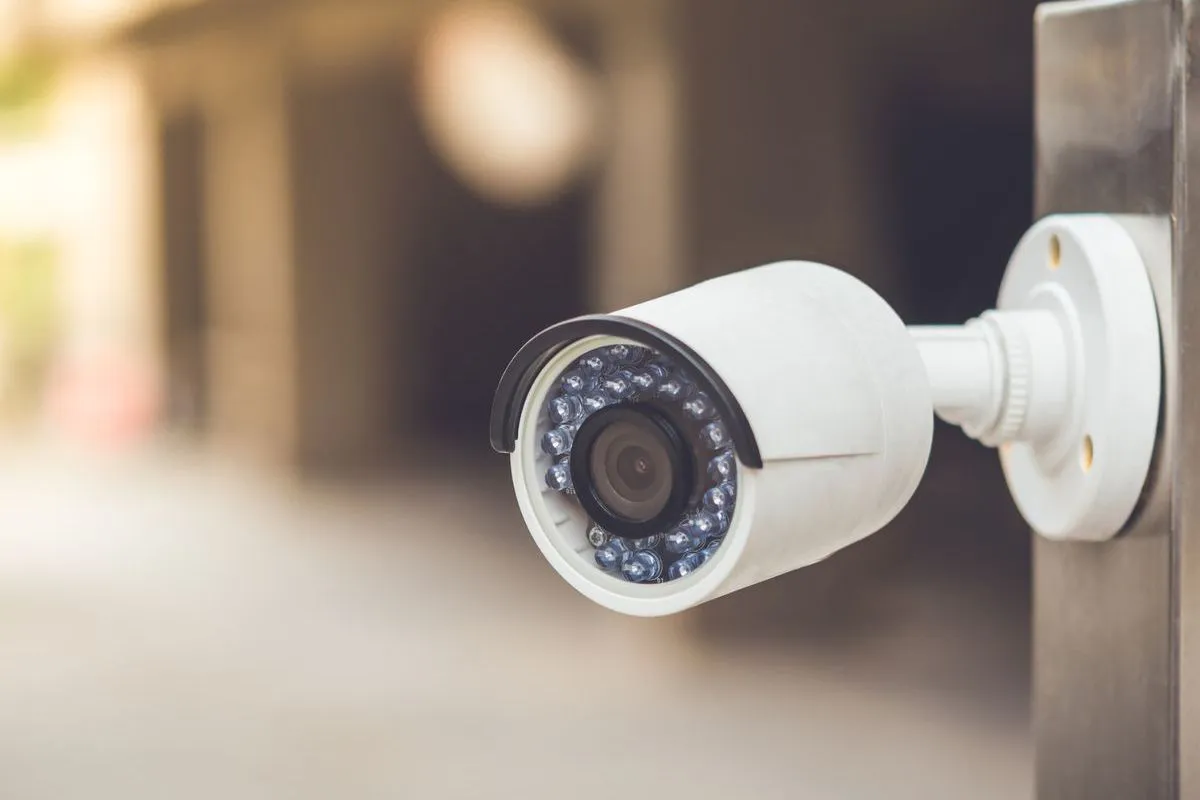
Why Do You Even Need a Home Security Camera?
Before we dive into the nuts and bolts, let’s quickly touch on the “why.” A home camera isn’t just about catching burglars in the act, though it’s certainly great for that. It’s about connection and peace of mind. It’s seeing your kids get home safely from school, checking if that important package has arrived, or even just making sure your mischievous dog isn’t redecorating the living room while you’re at work. My own camera once helped me prove to a delivery company that their driver had, in fact, tossed a fragile package over the gate. It’s these everyday moments where a camera proves its worth, turning your house into a home you can always keep an eye on.
Understanding the Different Types of Home Cameras
Not all cameras are created equal, and the type you have will slightly influence the setup process. They generally fall into a few key categories:
- Wired Cameras: These are old-school reliable. They connect directly to your home’s power and often to your internet router via an Ethernet cable. The connection is super stable, but installation can be a bit more involved.
- Wire-Free Cameras: The most popular choice for a reason. These battery-powered cameras give you incredible flexibility in placement. You can stick one on a bookshelf, mount it on a tree, or move it around as needed. Their app setup is typically the most straightforward.
- Indoor vs. Outdoor Cameras: This one’s pretty self-explanatory. Outdoor cameras are built tough to withstand rain, sun, and dust, while indoor cameras are designed to blend in with your home decor.
Regardless of the type, they all share one common goal: to stream video to your phone through a dedicated app. That app is your command center.
Key Features to Look for in a Home Camera App
The hardware is only half the story; the software—the app—is where the magic happens. A great app experience can make or break your home security system. Here’s what you should expect from a solid home camera app:
- Live View: The ability to tap a button and see a real-time feed from your camera.
- Two-Way Audio: A microphone and speaker on the camera that let you talk to whoever is there, whether it’s a delivery person or your pet.
- Motion and Sound Alerts: Customizable notifications sent to your phone when the camera detects activity.
- Cloud or Local Storage: Options to save recorded video clips, either on a subscription-based cloud service or a physical microSD card.
- Activity Zones: The ability to draw specific areas in the camera’s view where you want to detect motion, ignoring irrelevant movement outside those zones (like a tree swaying in the wind).
A Step-by-Step Guide on How to Set Up Home Camera App
Alright, let’s get down to business. While the exact steps might vary slightly between brands like Ring, Arlo, Wyze, or Eufy, the core process is remarkably similar. Here is a general guide on how to set up home camera app that applies to most modern smart cameras.
- Unbox and Power Up: First things first, get your camera out of the box. If it’s a wire-free model, make sure the battery is fully charged before you begin. For wired models, plug them into a power outlet near your Wi-Fi router for the initial setup. It makes things much easier.
- Download the Correct App: This is a big one. Go to the Apple App Store (for iOS) or Google Play Store (for Android) on your smartphone or tablet. Search for the specific app for your camera brand. The name will be clearly printed on the box or in the quick-start guide. Be careful to download the official app, not a third-party knockoff.
- Create Your Account: Open the app and you’ll be prompted to create a new account. This usually involves providing an email address and creating a strong, unique password.
Expert Tip: Don’t reuse a password from another service! Your camera account holds the keys to your home’s privacy. Use a mix of upper and lower case letters, numbers, and symbols.
- Add a New Device: Once logged in, you’ll see a button or icon to “Add Device,” “Set Up a New Camera,” or a simple “+”. Tap it. The app will then guide you, often asking you to select the specific model of camera you have.
- Connect to Your Wi-Fi: This is the most crucial step. The app will need your home Wi-Fi network name (SSID) and password. Make sure your phone is connected to the same 2.4GHz Wi-Fi network you want the camera to use. Most smart home devices, including cameras, don’t work well with 5GHz networks during setup.
- Sync the Camera with the App: This is where different brands get creative. The app will now need to pass the Wi-Fi information to the camera. This is often done in one of two ways:
- QR Code: The app will display a QR code on your phone’s screen. You’ll hold your phone a few inches away from the camera’s lens. The camera will scan the code, get the Wi-Fi details, and connect. You’ll usually hear a chime or a voice prompt like “Connection Successful.”
- Direct Connection: Some apps will ask you to temporarily connect your phone’s Wi-Fi to a network broadcast by the camera itself (e.g., “CAM-12345”). Once connected, you switch back to the app, which then sends the details of your home Wi-Fi to the camera.
- Firmware Update: Once the camera is online, the very first thing it will likely do is check for a firmware update. Let it! These updates contain critical security patches and new features. Properly managing these updates is essential for security. To understand more about this, learning how to update home camera firmware is a key part of maintaining your system’s integrity over time.
- Name and Place Your Camera: The final step! Give your camera a descriptive name like “Living Room,” “Front Door,” or “Backyard.” This helps you easily identify it in the app, especially if you plan on adding more cameras later. Now, you can mount it in its final location.
|
Our Picks for the Best Home Camera in 2026
As an Amazon Associate, we earn from qualifying purchases.
|
||
| Num | Product | Action |
|---|---|---|
| 1 | TP-Link Tapo 2K Pan/Tilt Security Camera for Baby Monitor, Dog Camera w/Motion Detection, 2-Way Audio, Siren, Night Vision, Cloud & SD Card Storage, Works with Alexa & Google Home, 2-Pack (C210P2) |

|
| 2 | Ring Outdoor Cam (Stick Up Cam) | Weather-Resistant Outdoor Camera, Live View, Color Night Vision, Two-Way Talk, Motion alerts, Works with Alexa | White |
|
| 3 | 2K Cameras for Home Security-Outdoor/Indoor Camera for Dog/Cat/Pet/Nanny/Baby, Color Night Vision, White Light, Siren, 24/7 SD Recordings, Works with Alexa/Google Home, C1 (C1-White-2pack-2.4G) |
|
| 4 | Ring Battery Doorbell | Home or business security with Head-to-Toe Video, Live View with Two-Way Talk, and Motion Detection & Alerts (newest model), Venetian Bronze |
|
| 5 | Kasa Smart Indoor Pan-Tilt Home Security Camera, 1080p HD Dog Camera w/Night Vision, Motion Detection for Baby & Pet Monitor, Cloud & SD Card Storage, Works w/ Alexa & Google Home, 2.4G WiFi (EC71) |
|
| 6 | TP-Link Tapo Pan/Tilt Security Camera for Baby Monitor, Pet Camera w/Motion Detection, 1080P, 2-Way Audio, Night Vision, Cloud & SD Card Storage, Works with Alexa & Google Home (Tapo C200) |
|
| 7 | Blink Mini 2 — Home Security & Pet Camera(s) with HD video, color night view, motion detection, two-way audio, and built-in spotlight — 1 camera (Black) |
|
| 8 | WYZE Cam v4 (Latest Model), 2.5K AI Security Camera, Indoor/Outdoor Cameras for Home Security, Baby Monitor & Pet Camera, Vibrant Color Night Vision, No Subscription Required, Free Expert Help |
|
| 9 | Tapo TP-Link 1080P Indoor Security Camera for Baby Monitor, Dog Camera w/Motion Detection, 2-Way Audio Siren, Night Vision, Cloud & SD Card Storage, Works w/Alexa & Google Home C100 |
|
| 10 | WYZE Cam Pan v3, Indoor/Outdoor IP65-Rated 1080p Pan/Tilt/Zoom Wi-Fi Smart Home Security Camera with Color Night Vision, 2-Way Audio, Compatible with Alexa & Google Assistant, Free Expert Setup |
|
Pro Tips for an Effective Home Camera Setup
Getting the app running is just the start. To truly get the most out of your system, you need to fine-tune the settings.
- Optimal Placement: Position your camera to cover key entry points like doors and ground-floor windows. Aim for a high vantage point to get a wide field of view and prevent it from being easily tampered with.
- Customize Motion Zones: Don’t let every passing car or rustling leaf trigger an alert. Use the app’s activity zone feature to focus only on areas that matter, like your walkway or porch. This will save your sanity and the camera’s battery life.
- Adjust Sensitivity: Most apps let you adjust motion sensitivity. If you’re getting too many false alarms, dial it down. If it’s missing things, turn it up. It might take a few days of tweaking to find the sweet spot.
- Set Up a Schedule: You probably don’t need motion alerts firing off every five minutes while you’re at home watching TV. Use the app’s scheduling or geofencing features to arm and disarm the camera automatically based on the time of day or your phone’s location.
Let’s Talk About Privacy and Security
A device that sees and hears what’s happening in your home needs to be locked down tight. Your privacy is paramount.
“The biggest mistake users make is keeping the default password or using a weak, easily guessable one. The second biggest is not enabling two-factor authentication (2FA). These two simple steps are the most powerful defense you have against unauthorized access.” – Dr. Evelyn Reed, Cybersecurity Analyst.
Here’s your security checklist:
- Use a Strong, Unique Password for your camera app account.
- Enable Two-Factor Authentication (2FA) if the app offers it. This sends a code to your phone before allowing a new device to log in, stopping hackers in their tracks even if they have your password.
- Be Mindful of Camera Placement, especially indoors. Do you really need a camera in a bedroom or bathroom?
- Keep Your App and Firmware Updated. As mentioned, these updates often contain vital security patches.
Integrating With Your Smart Home
The fun doesn’t stop with the app. Many modern cameras can be integrated with smart home ecosystems like Amazon Alexa and Google Assistant. This allows for cool voice commands like, “Alexa, show me the front door camera” on a compatible smart display. This integration is usually handled within the camera app’s settings or the Alexa/Google Home app, linking your accounts to unlock a new level of convenience.
Frequently Asked Questions (FAQ)
1. Do I need a monthly subscription for my home camera?
It depends on the brand. Most cameras offer basic functions like live streaming and motion alerts for free. However, for features like storing video recordings in the cloud for an extended period (e.g., 30-60 days) or advanced AI detection (like distinguishing between people, pets, and vehicles), a monthly subscription is often required.
2. Can I view my camera on multiple phones?
Yes! Most apps have a “Share Access” or “Add User” feature. You can invite family members via email to create their own logins to view the cameras, often with customizable permissions (e.g., they can view live but not delete recordings).
3. What happens if my Wi-Fi goes down?
If your camera loses its Wi-Fi connection, it won’t be able to stream live video or send notifications to the app. However, some cameras with local storage (a microSD card) will continue to record motion-triggered events and will upload them to the cloud once the connection is restored.
4. How much internet data does a home camera use?
This varies based on the video quality (1080p vs. 4K) and how often it’s streaming or recording. While just sitting idle, it uses very little data. When you’re actively live streaming or it’s uploading a recorded clip, it can use a significant amount. If you have a data cap on your internet plan, it’s something to monitor.
5. Can I set up the camera app from my computer?
While some brands offer a web portal for viewing on a computer, the initial setup process of connecting the camera to your Wi-Fi almost always requires the mobile app on a smartphone or tablet.
Your Home, Secured and Connected
There you have it. The process of how to set up home camera app is no longer a mystery. It’s a series of simple, guided steps that put incredible power and peace of mind right at your fingertips. By taking a few minutes to configure the settings, customize your alerts, and secure your account, you’re not just installing a gadget; you’re investing in your family’s safety and your own tranquility. Welcome to a smarter, more secure home.