Welcome to the Family Security 247 hub, where we turn your security concerns into confidence. Let’s be honest, the idea of setting up new tech can feel a bit daunting. You’ve just unboxed your shiny new home camera, envisioning the peace of mind it will bring, but now you’re faced with the crucial step: figuring out How To Connect Home Camera To Wifi. Don’t worry, you’ve come to the right place. Think of me as your friendly neighborhood security expert, here to walk you through the process, making it as simple as brewing your morning coffee. This guide will not only show you the “how” but also the “why” and “what,” empowering you to create a safer home environment.
Why You Even Need a WiFi Home Camera
Before we dive into the technical bits, let’s touch on the why. A few years back, a persistent “porch pirate” was hitting our neighborhood. Packages would vanish in broad daylight. After installing my first outdoor WiFi camera, I not only caught the culprit on video (which was incredibly satisfying, I might add) but the mere presence of the camera deterred any future thefts. It’s not just about catching bad guys; it’s about prevention and connection.
A WiFi-connected camera is your set of eyes and ears when you’re not around. It allows you to:
- Check on your family and pets: See if the kids got home from school safely or find out which furry friend is really responsible for chewing the couch cushions.
- Monitor deliveries: Get alerts when a package arrives and keep an eye on it until you can bring it inside.
- Deter intruders: Visible cameras are a powerful deterrent to potential burglars.
- Gain peace of mind: Whether you’re at work or on vacation, a quick tap on your phone can show you that everything is safe and sound back home.
Understanding the Players: Common Types of Home Cameras
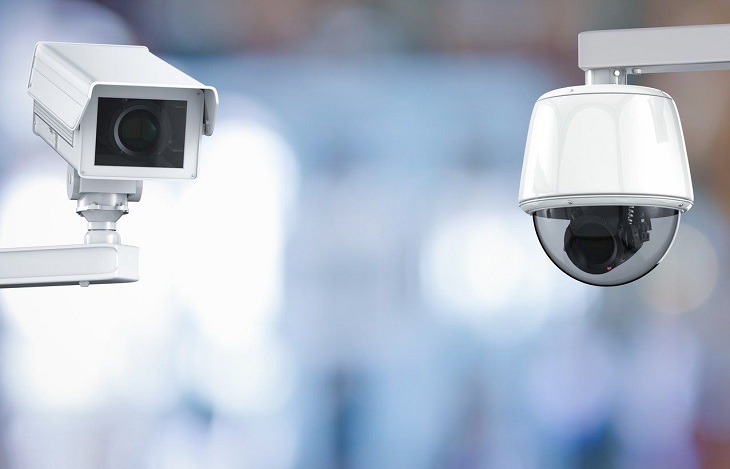
Not all cameras are created equal, but most modern ones connect to WiFi in a similar fashion. Here’s a quick rundown of what you’re likely working with:
Indoor Cameras
These are your go-to for monitoring activity inside your home. They are typically smaller, less obtrusive, and designed to blend in with your decor. They’re perfect for keeping an eye on the living room, a nursery, or a main entryway.
Outdoor Cameras
Built to withstand the elements, these cameras are weather-resistant and more rugged. They often come with more powerful night vision and a wider field of view to cover driveways, backyards, and front porches.
Wire-Free vs. Wired
- Wire-Free: These cameras run on rechargeable batteries and connect to your WiFi network wirelessly. Their biggest advantage is placement flexibility—you can put them almost anywhere without worrying about outlets.
- Wired: These cameras plug into a power outlet but still connect to your network via WiFi. You don’t have to worry about recharging batteries, but your placement is limited by the cord length.
Your Step-by-Step Guide: How to Connect Home Camera to WiFi
Alright, let’s get down to business. While the exact steps might vary slightly between brands like Ring, Arlo, Wyze, or Google Nest, the fundamental process is remarkably consistent.
Before You Begin: A Quick Checklist
Grab these items before you start. Having everything ready makes the process smooth and frustration-free.
- Your Home Camera: And all its accessories (power adapter, cable).
- Your Smartphone or Tablet: With the manufacturer’s app downloaded from the Apple App Store or Google Play Store.
- Your WiFi Network Name (SSID) and Password: Write it down if you’re prone to forgetting. Pro tip: Your camera will most likely need to connect to a 2.4GHz network, not a 5GHz one. Most modern routers broadcast both, but the 2.4GHz band has a longer range, which is better for security devices.
- A Strong WiFi Signal: Make sure you are setting up the camera in an area with a decent WiFi signal. If the signal is weak where you plan to install it, consider a WiFi extender.
The 7-Step Connection Process
- Power Up the Camera: Plug your camera into a power source using the provided adapter and cable. For wire-free models, ensure the battery is fully charged and inserted correctly. Most cameras will have an indicator light that turns on or blinks to show it’s ready for setup.
- Download the App and Create an Account: Search for the camera manufacturer’s app on your phone’s app store (e.g., the “Ring” app, “Arlo Secure” app). Download it, open it, and follow the prompts to create a new user account. This usually requires an email address and a secure password.
- Start the “Add Device” Process: Inside the app, look for an option like “Add Device,” “Set Up a New Device,” or a “+” icon. This will initiate the setup wizard. The app will likely ask you to identify the specific model of camera you are setting up.
- Scan the QR Code: This is where things get clever. Many cameras have a unique QR code printed on the back or bottom. The app will ask for permission to use your phone’s camera. Simply point your phone at the QR code on the security camera. This instantly tells the app which specific device you’re trying to connect. No QR code? The app may ask you to enter a serial number manually.
- Connect to Your WiFi Network: This is the most crucial step in learning how to connect home camera to WiFi. The app will prompt you to select your home WiFi network from a list of available networks.
- Select your network name (SSID).
- Carefully enter your WiFi password. Passwords are case-sensitive! Double-check for any typos before you proceed.
- Complete the Sync: Here’s where the magic happens. The app will now transfer the WiFi information from your phone to the camera. This can happen in a few ways:
- QR Code on Phone: The app might display a QR code on your phone’s screen. You’ll need to hold your phone’s screen in front of the camera lens until you hear a chime or a voice prompt confirming it was read successfully.
- Direct Connection: Some cameras create a temporary WiFi network of their own. Your phone will disconnect from your home WiFi, connect to the camera’s network briefly to transfer the credentials, and then both devices will switch back to your home network. Just follow the on-screen instructions.
- Bluetooth: Some newer models use Bluetooth for a seamless initial handshake between your phone and the camera.
- Finalize and Configure: Once connected, the camera will likely perform a firmware update to ensure it has the latest software and security patches. This can take a few minutes. After that, you’re in! You can now give your camera a name (e.g., “Living Room” or “Front Porch”), configure motion detection settings, and view the live stream. Congratulations!
|
Our Picks for the Best Home Camera in 2026
As an Amazon Associate, we earn from qualifying purchases.
|
||
| Num | Product | Action |
|---|---|---|
| 1 | TP-Link Tapo Pan/Tilt Security Camera for Baby Monitor, Pet Camera w/Motion Detection, 1080P, 2-Way Audio, Night Vision, Cloud & SD Card Storage, Works with Alexa & Google Home (Tapo C200) |

|
| 2 | Blink Mini 2 — Home Security & Pet Camera(s) with HD video, color night view, motion detection, two-way audio, and built-in spotlight — 1 camera (Black) |
|
| 3 | Ring Outdoor Cam (Stick Up Cam) | Weather-Resistant Outdoor Camera, Live View, Color Night Vision, Two-Way Talk, Motion alerts, Works with Alexa | White |
|
| 4 | Tapo TP-Link 1080P Indoor Security Camera for Baby Monitor, Dog Camera w/Motion Detection, 2-Way Audio Siren, Night Vision, Cloud & SD Card Storage, Works w/Alexa & Google Home C100 |
|
| 5 | WYZE Cam Pan v3, Indoor/Outdoor IP65-Rated 1080p Pan/Tilt/Zoom Wi-Fi Smart Home Security Camera with Color Night Vision, 2-Way Audio, Compatible with Alexa & Google Assistant, Free Expert Setup |
|
| 6 | Kasa Smart Indoor Pan-Tilt Home Security Camera, 1080p HD Dog Camera w/Night Vision, Motion Detection for Baby & Pet Monitor, Cloud & SD Card Storage, Works w/ Alexa & Google Home, 2.4G WiFi (EC71) |
|
| 7 | TP-Link Tapo 2K Pan/Tilt Security Camera for Baby Monitor, Dog Camera w/Motion Detection, 2-Way Audio, Siren, Night Vision, Cloud & SD Card Storage, Works with Alexa & Google Home, 2-Pack (C210P2) |
|
| 8 | WYZE Cam v4 (Latest Model), 2.5K AI Security Camera, Indoor/Outdoor Cameras for Home Security, Baby Monitor & Pet Camera, Vibrant Color Night Vision, No Subscription Required, Free Expert Help |
|
| 9 | 2K Cameras for Home Security-Outdoor/Indoor Camera for Dog/Cat/Pet/Nanny/Baby, Color Night Vision, White Light, Siren, 24/7 SD Recordings, Works with Alexa/Google Home, C1 (C1-White-2pack-2.4G) |
|
| 10 | Ring Battery Doorbell | Home or business security with Head-to-Toe Video, Live View with Two-Way Talk, and Motion Detection & Alerts (newest model), Venetian Bronze |
|
What About Privacy? Securing Your Newly Connected Camera
Connecting a device to the internet opens it up to the world, so security is paramount. A camera is meant to protect you, not create a new vulnerability.
“The single most important step any user can take is to move beyond the default password. Create a long, unique password for your camera’s account and enable two-factor authentication (2FA) immediately. It’s the digital equivalent of deadbolting your front door.” – Dr. Evelyn Reed, Cybersecurity Analyst
Here are some non-negotiable security practices:
- Use a Strong, Unique Password: Don’t reuse a password from another service. Combine upper and lowercase letters, numbers, and symbols.
- Enable Two-Factor Authentication (2FA): This adds a second layer of security. When you log in, the app will send a code to your phone that you must enter. This stops anyone who has stolen your password from accessing your camera feed.
- Keep Firmware Updated: As mentioned, your camera will likely update during setup. Always install new firmware updates when prompted, as they often contain critical security patches.
- Be Mindful of Placement: Point cameras away from highly private areas like bedrooms and bathrooms. Some cameras even have physical lens covers or a “home mode” that disables recording when you’re home.
Integrating with Your Smart Home Ecosystem
One of the best parts of a WiFi-connected camera is its ability to play nicely with other smart devices. You can often connect your camera to platforms like Amazon Alexa or Google Assistant. This unlocks cool features like:
- Voice Commands: “Alexa, show me the front door camera” on an Echo Show.
- Smart Routines: Create a routine where your smart lights turn on automatically when your outdoor camera detects motion at night.
This integration transforms your camera from a standalone security device into an active participant in your smart home, making your life more convenient and secure.
Frequently Asked Questions (FAQ)
Q: What if my camera won’t connect to the WiFi?
A: First, double-check that you entered the correct WiFi password. Second, make sure your camera is close enough to your router for a strong signal during setup. Finally, try rebooting your router and the camera by unplugging them for 30 seconds and then plugging them back in. This simple “turn it off and on again” trick solves a surprising number of issues.
Q: Do I need a specific type of WiFi for my home camera?
A: Not usually. Most home security cameras are designed to work with standard home WiFi routers. The most important requirement is a stable internet connection and a strong signal. As mentioned, most cameras prefer the 2.4GHz band over the 5GHz band due to its superior range and ability to penetrate walls.
Q: Can I connect my home camera to a 5GHz network?
A: It depends on the model. While most security cameras traditionally only supported 2.4GHz, many newer, higher-end models are dual-band and can connect to 5GHz networks. A 5GHz connection can offer faster speeds but has a shorter range. Check your camera’s specifications to be sure. If it only supports 2.4GHz, you must connect it to that band on your router.
Q: How far can a WiFi camera be from the router?
A: This depends on your router’s strength and the number of obstacles (like walls) between them. A good rule of thumb is to try and keep the camera within 50-100 feet of the router for a stable connection. If you need to place it further, a WiFi mesh system or a range extender can help blanket your entire home in a strong signal.
Q: Does connecting a camera to WiFi use a lot of data?
A: It depends on how you use it. The camera uses bandwidth primarily when you are live-streaming the feed or when it’s uploading a motion-triggered recording to the cloud. When idle, it uses very little data. If you have multiple cameras recording in high-definition 24/7, it can use a significant amount of data, so it’s best to have an unlimited home internet plan.
Your Home, Secured and Connected
You did it! By following these steps, you’ve transformed a simple piece of hardware into a powerful tool for your family’s safety and your own peace of mind. The process of how to connect home camera to WiFi is the gateway to a smarter, more secure home. Now you can check in on your loved ones, protect your property, and breathe a little easier, all from the palm of your hand. At Family Security 247, we believe that feeling safe is not a luxury—it’s a right. And now, you’re one big step closer to achieving it.