Welcome! As a Senior Security Solutions Expert at Family Security 247, I’ve seen it all. From grainy footage that misses the crucial moment to systems that are, frankly, a bit of a liability. One of the most common—and dangerous—oversights I see is neglecting a simple task. You might be wondering How To Update Home Camera Firmware, and you’ve come to the right place. Think of your home camera as a diligent little guard on duty 24/7. Just like a human guard needs the latest information to be effective, your camera needs regular updates to protect your home against the newest digital threats. Let’s break down why this is so important and how you can do it easily.
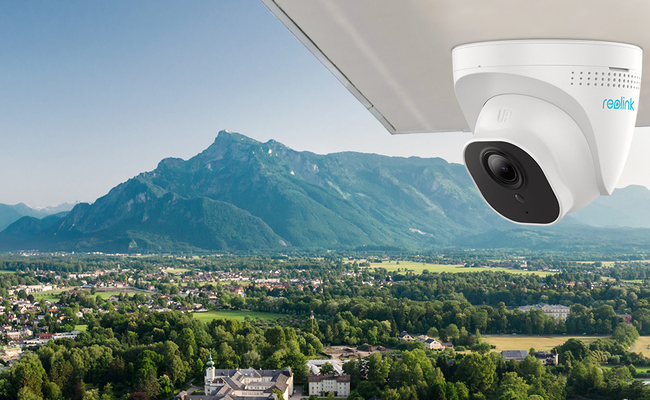
What in the World is Firmware, Anyway?
Before we dive into the “how,” let’s quickly cover the “what.” It sounds technical, but the concept is simple. If your camera’s hardware (the lens, the case, the physical bits) is its body, then the firmware is its brain.
Firmware is a special type of software that’s embedded directly onto your device’s hardware. It tells the camera how to operate: how to connect to Wi-Fi, how to process images, how to detect motion, and how to communicate with its app on your phone. It’s the fundamental operating system that makes your camera a smart camera. Without it, you’d just have a very small, very expensive paperweight.
Why You Absolutely Must Update Your Camera’s Firmware
“If it ain’t broke, don’t fix it,” right? Well, in the world of connected devices, that’s a recipe for disaster. Neglecting firmware updates is like leaving your digital front door unlocked. Here’s why staying current is non-negotiable for your family’s safety.
- Crucial Security Patches: This is the big one. Hackers are constantly looking for vulnerabilities—tiny cracks in a device’s software—to exploit. Manufacturers find these cracks and release firmware updates to “patch” them up. An outdated camera can be an open invitation for someone to view your private footage or even use your camera as a gateway into your entire home network.
- Access to New Features: You might be missing out! Companies often roll out cool new features through firmware updates. This could be anything from smarter AI person detection (so you don’t get an alert every time a squirrel runs by) to improved night vision clarity or better integration with your other smart home devices.
- Bug Squashing and Stability Fixes: Ever had your camera randomly disconnect or the app crash? Often, these annoying glitches are caused by bugs in the existing firmware. Updates are designed to squash these bugs, leading to a smoother, more reliable experience. You bought your camera for peace of mind, and constant glitches are the opposite of that.
- Enhanced Performance: Updates can optimize how your camera runs, leading to faster connection times, smoother video streaming, and more efficient use of your Wi-Fi bandwidth.
The Step-by-Step Guide on How to Update Home Camera Firmware
Okay, you’re convinced. You want your digital guard to be as sharp and secure as possible. The good news is that most modern camera brands have made this process incredibly simple. For 99% of users, you’ll be doing this right from your smartphone.
Here is the most common method:
- Open the Manufacturer’s App: Grab your smartphone and open the app you use to view and manage your camera (e.g., the Wyze, Eufy, Ring, or Arlo app). This is your command center.
- Navigate to Your Camera’s Settings: Tap on the specific camera you want to update. You’re looking for a settings icon, often represented by a gear (⚙️) or three dots (…).
- Look for “Firmware Update” or “Device Info”: Once you’re in the settings menu for that camera, scroll through the options. You’re looking for a menu item that says something like “Firmware Version,” “Device Update,” “Check for Update,” or “Device Info.” The exact wording varies by brand, but it’s usually pretty obvious.
- Initiate the Update: If a new update is available, the app will almost always tell you. You’ll see a button that says “Update,” “Upgrade,” or “Download and Install.” Tap it.
- Be Patient and Do Not Unplug! This is the most critical part. The update process can take anywhere from 2 to 10 minutes. During this time, the camera’s light might flash in an unusual pattern. Whatever you do, do not unplug the camera or turn off your Wi-Fi. Interrupting a firmware update can “brick” your device, rendering it completely useless. Just let it do its thing. The app will notify you when the process is complete, and the camera will restart.
That’s it! You’ve successfully performed a critical piece of security maintenance.
“People get excited about new features like 4K resolution or color night vision, but the single most important feature of any security camera is its ability to be securely updated. An unpatched camera isn’t just a gadget; it’s a potential vulnerability. I always tell my clients to prioritize brands that have a proven track record of consistent and timely firmware updates.”
— Dr. Evelyn Reed, Smart Home Security Consultant
What If I Can’t Find an Update Option in the App?
While the app-based method is the most common, some cameras, particularly older or more professional models, might have a different process.
- Check for Automatic Updates: Many modern cameras are set to update their firmware automatically by default. You can usually find this setting in the same “Device Info” or “Firmware” section of the app. If it’s on, you might not have to do anything at all. It’s still good practice to check manually every few months.
- Manual Update via Web Interface: Some cameras can be accessed through a web browser on your computer by typing in their local IP address. This interface often has an option to manually check for and install firmware.
- SD Card Method: For some models, you may need to go to the manufacturer’s support website, download the latest firmware file to your computer, copy it to a microSD card, and then insert that card into the camera. The camera will then detect the file and begin the update upon rebooting. This is less common now but is still a valid method for certain brands.
Troubleshooting Common Update Issues
Sometimes, things don’t go as planned. Here are a few common hiccups and how to handle them.
- Problem: The update fails to start or gets stuck at 0%.
- Solution: This is almost always a network issue. Make sure your phone and your camera are connected to a stable Wi-Fi network. Try moving your router closer to the camera or rebooting your router before trying again.
- Problem: The camera is offline after the update finishes.
- Solution: Give it a few extra minutes. If it’s still offline, try a simple power cycle: unplug the camera, wait 30 seconds, and plug it back in. This resolves the issue most of the time.
- Problem: The update seems to have failed, and the camera is unresponsive.
- Solution: You might be facing a “bricked” device. Before you panic, try a factory reset (there’s usually a small, recessed button you need to press with a paperclip). If that doesn’t work, it’s time to contact the manufacturer’s customer support. This is rare, but it can happen.
Frequently Asked Questions (FAQ)
Q: How often should I check for home camera firmware updates?
A: It’s a great habit to manually check for updates once every 1-2 months. If your camera has an automatic update feature, ensure it is enabled for maximum security.
Q: Is it safe to update my camera’s firmware?
A: Yes, it is not only safe but essential for your security. Updates from official manufacturers are designed to make your device more secure. The only real risk comes from interrupting the update process, so make sure the camera has a stable power supply.
Q: What happens if I never update my camera’s firmware?
A: You leave your camera—and potentially your home network—vulnerable to known security exploits. You also miss out on new features, bug fixes, and performance improvements, meaning you’re not getting the most out of the device you paid for.
Q: Can a firmware update be reversed or undone?
A: Generally, no. Firmware updates are designed to be permanent installations. This is why it’s crucial to only install official updates directly from the manufacturer to avoid issues.
Q: My app says the firmware is up to date, but I think a newer version exists. What can I do?
A: This can happen if updates are rolled out in phases. You can visit the manufacturer’s official support website and check their downloads or support section. If a newer version is listed, they will provide instructions for a manual update if one is available.
Your Security is in Your Hands
Keeping your home and family safe is the whole reason you invested in a security camera. Learning how to update home camera firmware is a simple, five-minute task that transforms your device from a potential liability into a robust, modern security tool. It’s one of the most powerful and easiest things you can do to ensure your peace of mind. Now, go ahead and open that app—your digital guard is waiting for its latest instructions.