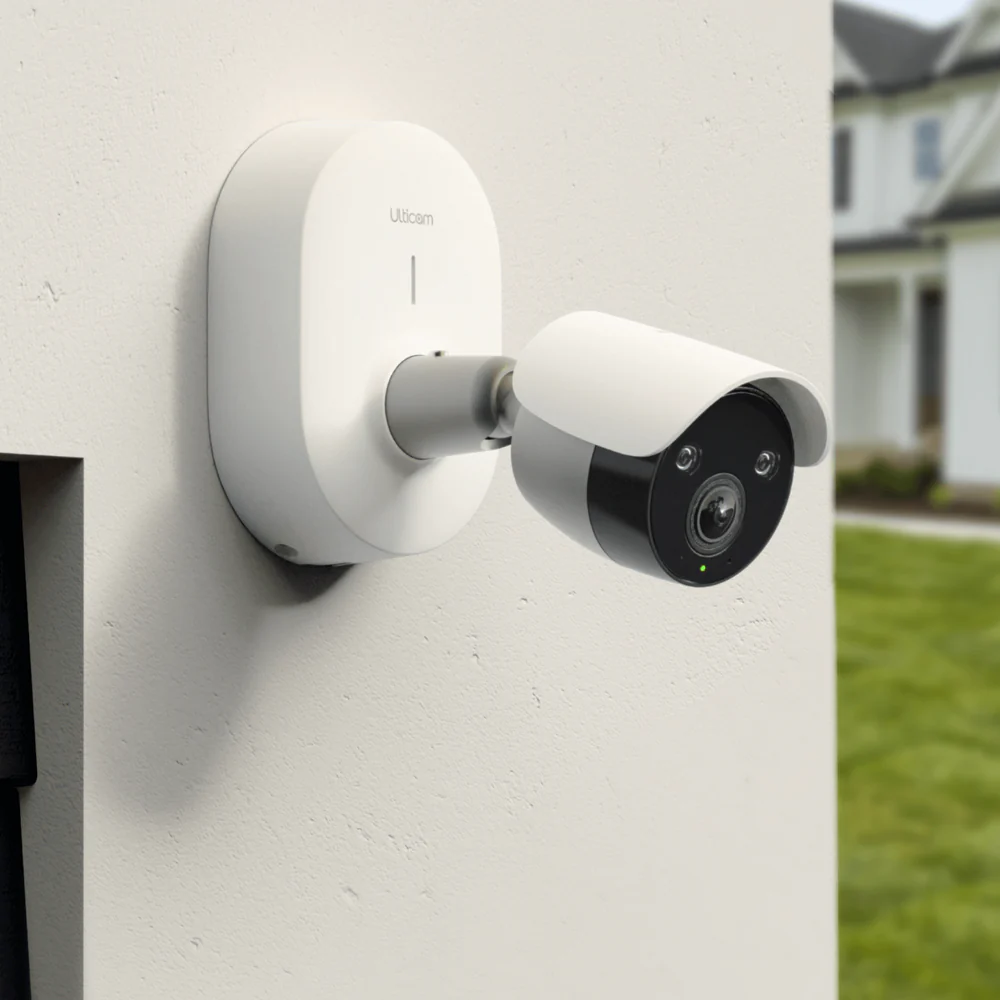
The right home camera for home office security provides essential protection for your livelihood, data, and peace of mind by deterring theft, monitoring deliveries, and providing crucial evidence in case of a break-in. With the rise of remote work, securing your workspace with a dedicated camera is no longer just a tech gadget purchase but a vital business decision, ensuring sensitive documents and expensive equipment are always under a watchful eye.
Why Your Home Office Needs More Than Just a Locked Door
You might think a locked door is enough, but in today’s world, that’s just the first line of defense. A dedicated security camera offers layers of protection and convenience that a simple lock can’t match.
Your home office likely contains a powerful computer, monitors, printers, and maybe even client prototypes or sensitive paperwork. These are professional assets. A home camera for home office security acts as a powerful deterrent to potential intruders. But its job doesn’t stop there.
I remember a time a crucial work package was left on my porch while I was on a video call, completely oblivious. My camera sent a package detection alert to my phone, allowing me to pop out and grab it before it became a target for porch pirates. It’s these small moments of security that add up to a huge sense of relief.
Here’s a quick rundown of the benefits:
- Deterring Theft: The mere presence of a visible camera can make a would-be thief think twice.
- Monitoring Deliveries: Keep an eye on important work-related packages and documents.
- Providing Evidence: In the unfortunate event of a break-in, high-quality video footage is invaluable for police and insurance claims.
- Peace of Mind: Knowing you can check in on your workspace from anywhere in the world with a tap on your phone is priceless.
What Are the Main Types of Home Security Cameras?
When you start shopping, you’ll see a few different types. For a home office, your choices are generally straightforward.
Indoor Wi-Fi Cameras
These are the workhorses of indoor security. They are typically compact, easy to set up, and connect directly to your home’s Wi-Fi network. You can place them on a desk, a bookshelf, or mount them to a wall. Their biggest advantage is flexibility and a wealth of smart features. Most of the best options for a home camera for home office security fall into this category.
Wired Cameras
Wired cameras offer a rock-solid connection because they are physically linked to your network and a power source. This eliminates concerns about Wi-Fi dropouts or dead batteries. However, the installation is far more complex and often requires drilling holes and running cables, which might be overkill for a single room.
Battery-Powered Cameras
|
Our Picks for the Best Home Camera in 2026
As an Amazon Associate, we earn from qualifying purchases.
|
||
| Num | Product | Action |
|---|---|---|
| 1 | Kasa Smart Indoor Pan-Tilt Home Security Camera, 1080p HD Dog Camera w/Night Vision, Motion Detection for Baby & Pet Monitor, Cloud & SD Card Storage, Works w/ Alexa & Google Home, 2.4G WiFi (EC71) |

|
| 2 | Tapo TP-Link 1080P Indoor Security Camera for Baby Monitor, Dog Camera w/Motion Detection, 2-Way Audio Siren, Night Vision, Cloud & SD Card Storage, Works w/Alexa & Google Home C100 |
|
| 3 | WYZE Cam Pan v3, Indoor/Outdoor IP65-Rated 1080p Pan/Tilt/Zoom Wi-Fi Smart Home Security Camera with Color Night Vision, 2-Way Audio, Compatible with Alexa & Google Assistant, Free Expert Setup |
|
| 4 | 2K Cameras for Home Security-Outdoor/Indoor Camera for Dog/Cat/Pet/Nanny/Baby, Color Night Vision, White Light, Siren, 24/7 SD Recordings, Works with Alexa/Google Home, C1 (C1-White-2pack-2.4G) |
|
| 5 | TP-Link Tapo Pan/Tilt Security Camera for Baby Monitor, Pet Camera w/Motion Detection, 1080P, 2-Way Audio, Night Vision, Cloud & SD Card Storage, Works with Alexa & Google Home (Tapo C200) |
|
| 6 | WYZE Cam v4 (Latest Model), 2.5K AI Security Camera, Indoor/Outdoor Cameras for Home Security, Baby Monitor & Pet Camera, Vibrant Color Night Vision, No Subscription Required, Free Expert Help |
|
| 7 | Ring Outdoor Cam (Stick Up Cam) | Weather-Resistant Outdoor Camera, Live View, Color Night Vision, Two-Way Talk, Motion alerts, Works with Alexa | White |
|
| 8 | TP-Link Tapo 2K Pan/Tilt Security Camera for Baby Monitor, Dog Camera w/Motion Detection, 2-Way Audio, Siren, Night Vision, Cloud & SD Card Storage, Works with Alexa & Google Home, 2-Pack (C210P2) |
|
| 9 | Ring Battery Doorbell | Home or business security with Head-to-Toe Video, Live View with Two-Way Talk, and Motion Detection & Alerts (newest model), Venetian Bronze |
|
| 10 | Blink Mini 2 — Home Security & Pet Camera(s) with HD video, color night view, motion detection, two-way audio, and built-in spotlight — 1 camera (Black) |
|
The ultimate in placement freedom, these cameras run on rechargeable batteries. You can stick one almost anywhere without worrying about outlets. The downside? You have to remember to charge them. For a set-and-forget home office setup, a plug-in Wi-Fi camera is often a more reliable choice.
Key Features to Look for in a Home Camera for Home Office Security
Not all cameras are created equal. When you’re protecting your workspace, you need to focus on the features that truly matter. Here’s your checklist.
- Crystal-Clear Resolution: Forget grainy, unidentifiable blobs. Look for a camera with at least 1080p (Full HD) resolution. For a home office, I strongly recommend stepping up to 2K or even 4K. Why? Because you need to see details – the text on a document, a face, or a logo on a shirt.
- Excellent Night Vision: Your office needs protection 24/7. Modern cameras use infrared (IR) LEDs to see in complete darkness. Look for “color night vision” if you want to see more detail when the lights are out.
- Wide Field of View (FOV): This is how much of the room the camera can see at once, measured in degrees. A camera with a 130-degree or wider FOV can often cover your entire home office from a single corner, eliminating blind spots.
- Two-Way Audio: This feature turns your camera into an intercom. You can hear what’s happening in the room and speak through a built-in speaker. It’s perfect for verbally warning off an intruder or even just telling your dog to get off your office chair.
- Smart Motion Detection and Alerts: This is a game-changer. Basic cameras alert you for any motion, which can lead to a flood of notifications from shifting shadows or a pet wandering by. A smart home camera for home office security uses AI to differentiate between people, animals, and other movements, so you only get the alerts that matter.
- Flexible Storage Options: You need a place to save your video footage. You have two main choices:
- Local Storage: This usually means a microSD card that plugs directly into the camera. It’s a one-time purchase with no monthly fees, and your footage stays within your home.
- Cloud Storage: Your video is uploaded to the manufacturer’s secure servers. This typically requires a monthly subscription, but it means your evidence is safe even if a thief steals the camera itself. Many people use a hybrid approach.
Let’s Talk Privacy: Is My Home Office Camera Secure?
Placing a camera in your home, especially your workspace, understandably brings up privacy concerns. The good news is that reputable manufacturers take this very seriously. However, you also have a role to play in securing your device.
“The weakest link in any security system is often the human element. Using a simple, reused password for your security camera is like leaving the key to your business under the doormat. Two-factor authentication is non-negotiable for any internet-connected device in your home office.”
— Dr. Evelyn Reed, Cybersecurity Analyst
Here are three simple but critical steps to protect your privacy:
- Create a Strong, Unique Password: Don’t reuse the password from your email or social media. Use a long combination of letters, numbers, and symbols.
- Enable Two-Factor Authentication (2FA): This is the single most important step you can take. It means that even if someone steals your password, they can’t access your camera’s feed without a second code, usually sent to your phone.
- Keep Your Firmware Updated: Manufacturers regularly release updates to patch security vulnerabilities. Most camera apps will notify you when an update is available. Don’t ignore them!
How to Install Your Home Office Camera Like a Pro
You don’t need to be a tech wizard to set up a modern Wi-Fi camera. The process is usually very user-friendly.
- Find the Perfect Spot: Choose a location that gives you the best possible view of the entire room, especially the doorway and any windows. A high corner is often ideal. Make sure it’s within range of a power outlet and your Wi-Fi signal.
- Download the App: Every smart camera has a companion app for your smartphone. Download it from the Apple App Store or Google Play Store and create an account.
- Power Up and Connect: Plug in your camera. The app will then guide you through the process of connecting it to your home Wi-Fi network. This usually involves scanning a QR code with the camera’s lens. It’s typically a five-minute job.
- Customize Your Settings: Once connected, dive into the app’s settings. This is where you’ll set up motion detection zones (e.g., ignore the window but watch the door), schedule when the camera should be active, and adjust alert sensitivity.
Frequently Asked Questions
Q: Can a home camera work without an internet connection?
A: Most smart cameras require Wi-Fi to send alerts and allow for remote viewing. However, some models with local microSD card storage can continue to record footage even if the internet goes down. You just won’t be able to view it live until the connection is restored.
Q: Will a security camera slow down my internet?
A: A camera uses bandwidth primarily when you are live-streaming the feed or when it’s uploading a motion-triggered clip to the cloud. When idle, the impact is minimal. A single 1080p or 2K camera will not noticeably slow down a modern broadband connection.
Q: Is it legal to have a camera in my home office?
A: Generally, yes. It is legal to record video inside your own home for security purposes. However, laws vary regarding audio recording, so it’s always wise to be aware of your local regulations concerning consent, especially if your home office is also a space used by others.
Q: What’s the difference between a home camera and a webcam?
A: A webcam is designed for live video calls and connects directly to a computer. A security camera is a standalone device designed for surveillance, with features like night vision, motion detection, remote access, and dedicated storage.
Q: How much does cloud storage for a security camera usually cost?
A: Prices vary by brand, but you can typically expect to pay anywhere from $3 to $10 per month for one camera. Many plans offer discounts if you pay annually or have multiple cameras from the same brand.
The Final Word on Your Home Office Security
Choosing a home camera for home office security is a proactive step toward protecting your career and your property. It’s an investment in tranquility. By focusing on key features like high resolution, smart alerts, and robust privacy settings, you can find a device that acts as a silent, vigilant guardian for your workspace. You’ll be able to focus on your work, confident that your professional sanctuary is safe and sound, whether you’re at your desk or miles away.
Frequently Asked Questions
Can a home camera function without an internet connection?
Most smart cameras require Wi-Fi for remote viewing and sending alerts. However, some models with local microSD card storage can continue to record footage even if the internet goes down, though live viewing will be unavailable until the connection is restored.
Will installing a security camera negatively impact my internet speed?
A security camera primarily uses bandwidth when live-streaming footage or uploading motion-triggered clips to cloud storage. When idle, its impact is minimal, and a single 1080p or 2K camera will not noticeably slow down a modern broadband connection.
Is it legal to place a camera in my home office for security?
Generally, it is legal to record video inside your own home for security purposes. However, laws regarding audio recording vary by location, so it's advisable to be aware of local regulations concerning consent, especially if your home office is a shared space.
What is the difference between a home security camera and a webcam?
A webcam is designed for live video calls and connects directly to a computer. In contrast, a security camera is a standalone surveillance device with features like night vision, motion detection, remote access, and dedicated storage options.
What is the typical monthly cost for security camera cloud storage?
Cloud storage prices vary by brand, but you can generally expect to pay between $3 to $10 per month for a single camera. Many providers offer discounts for annual payments or for users with multiple cameras from the same brand.
Install Your Home Office Security Camera
Setting up a modern Wi-Fi camera for your home office is a user-friendly process that can be completed in a few simple steps to ensure your workspace is secure.
Choose a location that provides the best possible view of the entire room, focusing on doorways and windows. A high corner is often ideal, ensuring it's within range of a power outlet and your Wi-Fi signal.
Every smart camera requires a companion app for your smartphone. Download it from the Apple App Store or Google Play Store and proceed to create a new account.
Plug in your camera to a power source. The app will then guide you through connecting it to your home Wi-Fi network, often by scanning a QR code with the camera's lens. This process typically takes about five minutes.
Once connected, access the app's settings to configure motion detection zones (e.g., ignoring windows but monitoring doors), schedule active times for the camera, and adjust alert sensitivity to your preferences.
Smart home that does not lock you in
Free PDF — protocol compatibility matrix for 30 hubs and devices.
This camera has been a game-changer for my home office security. I used to just rely on a locked door, but the idea of having crucial evidence in case of a break-in really resonated with me. It was straightforward to set up and the app is very user-friendly. Highly recommend for anyone with valuable professional assets at home.
I was really on the fence about getting a dedicated camera just for my home office, but after reading about how it protects sensitive documents and equipment, I took the plunge. The peace of mind knowing my work setup is monitored, even when I step out, is invaluable. It was super easy to integrate with my existing smart home system too.
I got one of these specifically to monitor deliveries to my home office door, and it’s been fantastic. No more missed packages or worrying about porch pirates. It also gives me a sense of security knowing there’s evidence if anything were to happen. Definitely a smart investment for anyone working remotely.
The camera itself is pretty good for deterring theft, and the video quality is clear. My only complaint is that the motion detection can be a little too sensitive sometimes, even after adjusting the settings. I get a lot of alerts for my cat just walking by, which can be annoying. Still, it’s better than nothing for keeping an eye on my expensive computer.