Let’s be honest, that grainy, washed-out image from your security camera in the middle of the night isn’t giving you much peace of mind. You invested in a home camera for clarity and security, not to play “guess the blurry shape” at 2 AM. If you’re struggling with poor nighttime footage, you’ve come to the right place. Learning how to adjust night vision home camera settings is often the key to transforming a useless image into a crystal-clear security feed. As a Senior Security Solutions Expert at An Ninh Gia Dinh 247, I’ve helped countless families solve this exact problem, and today, I’m going to walk you through it, step-by-step.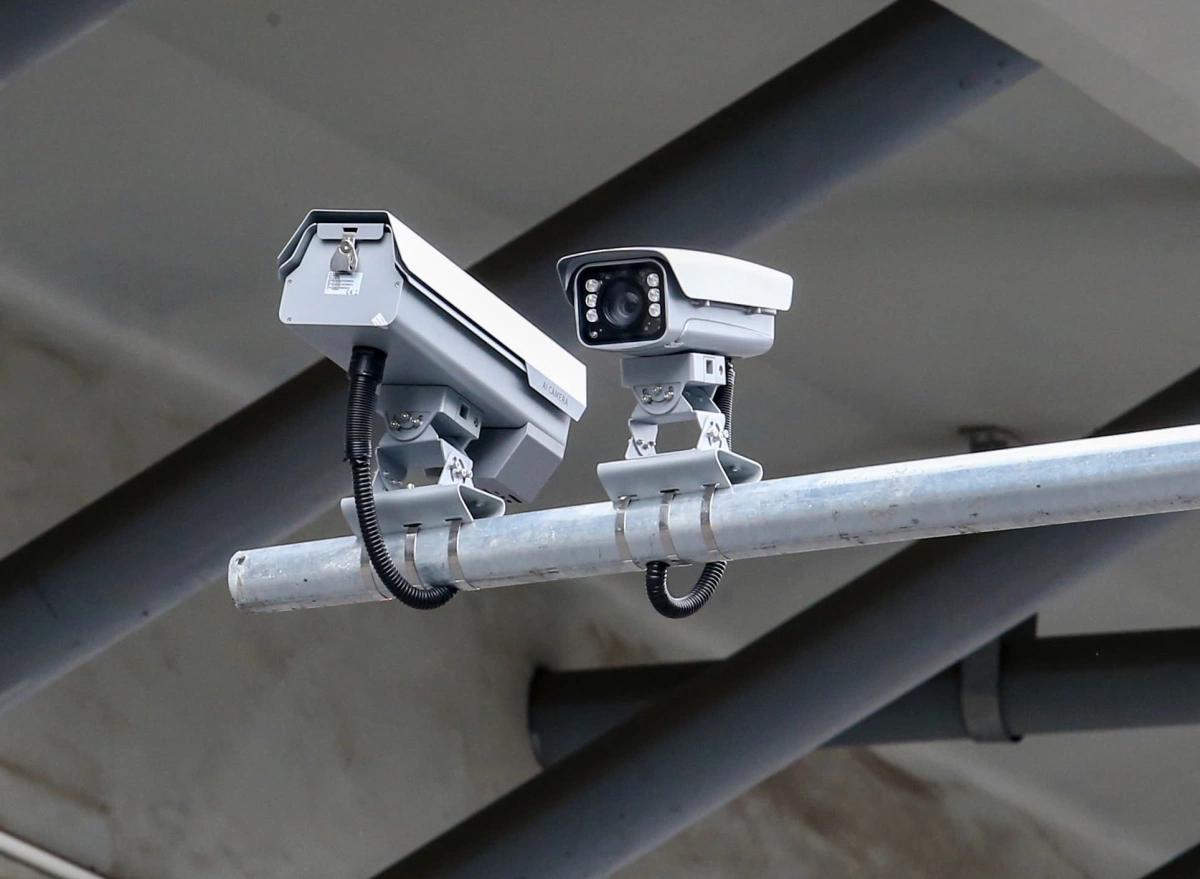
First, What Exactly is Night Vision in Your Camera?
Before we dive into the fixes, it helps to understand what’s happening inside that little device. Think of it like having two different sets of eyes. During the day, your camera uses a standard sensor to capture color video. But when the lights go out, it switches to a different mode.
Infrared (IR) Night Vision: The Classic Black and White
This is the most common type of night vision. Your camera is surrounded by tiny infrared LEDs. You can’t see this light with your own eyes, but the camera’s sensor can. These LEDs act like a dedicated flashlight, bathing the area in infrared light. The camera then captures that reflected light, producing a clear black and white image. It’s reliable, effective, and works in complete darkness. The faint red glow you sometimes see on a camera at night? That’s those IR LEDs hard at work.
Color Night Vision: The Modern Upgrade
Newer, more advanced cameras offer something called color night vision. This technology works in a couple of ways. Some models use highly sensitive sensors that can create a full-color image using just a tiny bit of ambient light, like a streetlight or a porch light. Others have a small, built-in, visible spotlight that turns on when motion is detected, flooding the area with light and allowing the camera to record in color.
Common Night Vision Problems (And Why They Happen)
If your nighttime view is less than ideal, you’re likely facing one of these common issues. Identifying the problem is the first step in fixing it.
- Blurry or Grainy Images: This often happens when the camera’s IR lights aren’t powerful enough for the distance, or there’s a dirty lens scattering the light.
- The “White Out” Glare Effect: Have you ever seen a bright white spot or a ghostly orb in your footage? This is usually caused by the IR light bouncing off a nearby surface—like a wall, a windowsill, or even a spiderweb—and flooding the lens.
- Dark Spots or “Vignetting”: This can look like the corners of your video are dark. It typically means the IR illumination isn’t spread evenly across the camera’s entire field of view.
- Night Vision Not Turning On: Sometimes, the camera’s light sensor gets confused. If there’s a nearby light source, like a porch light, the camera might think it’s still daytime and fail to switch to night mode.
Your Step-by-Step Guide: How to Adjust Night Vision Home Camera Settings
Alright, let’s get our hands dirty and fix that image. The good news is that most adjustments can be made right from your smartphone app. While the exact menu names might differ between brands like Arlo, Ring, Wyze, or Eufy, the principles are the same.
- Access Your Camera’s App or Web Interface: This is your command center. Open the app on your phone or log in through a web browser. Select the specific camera you want to adjust.
- Locate the ‘Display’ or ‘Video Settings’ Menu: You’re looking for the control panel for your video feed. This is commonly labeled “Video Settings,” “Display,” “Device Settings,” or sometimes “Night Vision Settings.”
- Adjust the Night Vision Mode: This is the most crucial setting. You’ll typically find a few options:
- Auto: This is the default for most cameras. The camera will automatically switch between day and night mode based on the ambient light. This works well for most, but can be problematic if you have tricky lighting.
- On (or Manual): This forces the camera into night vision mode, regardless of the lighting conditions. It’s useful for troubleshooting.
- Off: This keeps the camera in daytime (color) mode. The image will be very dark at night unless you have significant external lighting.
- Color Night Vision: If your camera supports it, you might have a separate toggle to enable or disable this feature.
- Tweak IR Intensity or “Smart IR”: Some higher-end cameras allow you to control the brightness of the infrared LEDs. If you’re experiencing that “white out” glare from a nearby object, try turning the IR intensity down. A feature called Smart IR automatically adjusts the intensity based on how close an object is to the camera, which is fantastic for preventing overexposure.
- Check for Firmware Updates: This is a step many people miss. Manufacturers are constantly releasing updates that improve performance, including night vision algorithms. Make sure your camera’s firmware is up to date through the app.
Beyond the App: Physical Adjustments for Crystal-Clear Night Vision
Sometimes, the perfect setting isn’t in a menu. Your camera’s physical placement and condition play a massive role in night vision quality. Before you give up, try these real-world tweaks.
Clean That Lens!
It sounds too simple, but it’s the number one culprit I see. A lens covered in dust, pollen, or a thin film of grime will scatter the IR light and create a hazy, blurry mess. Use a soft microfiber cloth to gently wipe the lens clean. You’ll be amazed at the difference it makes.
Mind the Glare: Check for Reflective Surfaces
Your camera’s IR light is powerful, and it bounces. Take a look at your camera’s live view at night. Is it positioned right under an eave or next to a white brick wall?
“Infrared glare is the enemy of clear night vision. The IR light from the camera can bounce off a close, reflective surface and overwhelm the sensor, effectively blinding it. I always advise homeowners to ensure there’s at least a foot of clearance around the camera’s front.” – Dr. Alistair Finch, Smart Home Security Analyst
Move the camera slightly or angle it away from the reflective surface. And for heaven’s sake, never point a camera out through a window at night with IR on. The IR light will simply reflect off the glass, and all you’ll see is a bright, white glare.
The Importance of Placement and Power
Is the area you’re monitoring too large for your camera’s IR range? Most home cameras have an effective night vision range of 30 to 50 feet. If you’re trying to see the back of a large yard, you might need a camera with more powerful IR LEDs or consider adding a separate IR illuminator. Also, ensure your camera has a stable power source. A low battery on a wireless camera can sometimes lead to reduced performance, including weaker IR lights.
Frequently Asked Questions (FAQ)
Q: Why is my camera’s night vision black and white?A: This is completely normal for most cameras. They use infrared (IR) light to see in the dark, and the resulting image captured by the sensor is monochrome. Only cameras specifically equipped with “Color Night Vision” technology can produce color images in low light.Q: Can I make my night vision see further?A: The distance is limited by the power of the camera’s built-in IR LEDs. To see further, you can purchase and install a separate IR illuminator. This device works like a powerful, invisible floodlight that can dramatically extend your camera’s night vision range.Q: How do I fix the red glow from my security camera?A: The faint red glow is the visible light produced by the infrared LEDs. While you can’t eliminate it completely, some cameras offer a “covert” or “stealth” mode in the settings that turns off the LEDs. Be aware that doing this will disable your camera’s ability to see in total darkness unless you have another light source.Q: Does night vision work through a window?A: Standard IR night vision does not work through glass. The IR light will reflect off the window pane directly back into the lens, creating a massive glare and obscuring the view. For monitoring through a window, you must turn off the camera’s IR LEDs and rely on outdoor ambient light.Q: What is ‘Color Night Vision’ and is it better?A: Color Night Vision uses either a highly sensitive sensor to capture ambient light or a small, motion-activated spotlight to illuminate the scene. It’s generally considered better because color provides more detail for identification purposes (e.g., the color of a car or a jacket). However, it requires some level of ambient light to function, whereas traditional IR can work in absolute darkness.
Your Home, Your Peace of Mind
Mastering your security camera’s settings is about more than just technology; it’s about reclaiming your sense of security. A clear, reliable nighttime view means you can rest easy, knowing your property is truly being watched over. By taking the time to how to adjust night vision home camera settings and optimize its physical placement, you are taking a proactive step toward a safer home. At An Ninh Gia Dinh 247, we believe that empowered homeowners are safe homeowners. Now, go put these tips to the test and enjoy the clarity and confidence you deserve.
Adjust Night Vision Home Camera Settings
Improve your security camera's nighttime footage by adjusting settings in the app and making physical placement tweaks.
Open your camera's dedicated smartphone app or log in via a web browser. Select the specific camera you wish to adjust from your device list. This interface is your primary control center for all camera settings.
Navigate to the 'Display' or 'Video Settings' menu within the app. This section is often labeled 'Device Settings' or 'Night Vision Settings' and contains controls for your camera's video feed.
Find the night vision mode options, which typically include 'Auto,' 'On' (manual), and 'Off.' If your camera supports it, you may also find a toggle for 'Color Night Vision.' Select the mode that best suits your lighting conditions, with 'Auto' being the default for most.
If available, adjust the infrared (IR) intensity. Reducing IR brightness can prevent 'white out' glare from nearby reflective surfaces. Cameras with 'Smart IR' automatically adjust intensity based on object proximity, which is ideal for preventing overexposure.
Ensure your camera's firmware is up to date through the app. Manufacturers frequently release updates that improve performance, including night vision algorithms, which can significantly enhance image quality and reliability.
Smart home that does not lock you in
Free PDF — protocol compatibility matrix for 30 hubs and devices.
I followed the guide to adjust my night vision home camera, and while some of the tips helped a little, I still get a lot of glare from my porch light. I wish there was more specific advice for dealing with external light sources that interfere with the IR. It’s better, but not the crystal-clear feed I was hoping for.
I was so frustrated with my old camera’s night vision, it was practically useless. Following the steps to adjust the night vision home camera settings made a huge difference. Now I can actually see what’s going on in my backyard after dark, which gives me so much more peace of mind. It’s like having a whole new camera!
This was exactly what I needed! My camera was giving me those blurry shapes at 2 AM, and I thought I’d have to buy a new one. Understanding how the standard sensor and IR work together, and then making those small adjustments, completely transformed my nighttime security. Highly recommend trying these steps before giving up on your current setup.
My camera’s night footage was always super grainy and washed out, just like the post described. I tried a few of the suggestions, especially focusing on the IR illuminators, and the improvement is noticeable. It’s not perfect, but definitely clearer than before. Glad I found these tips.