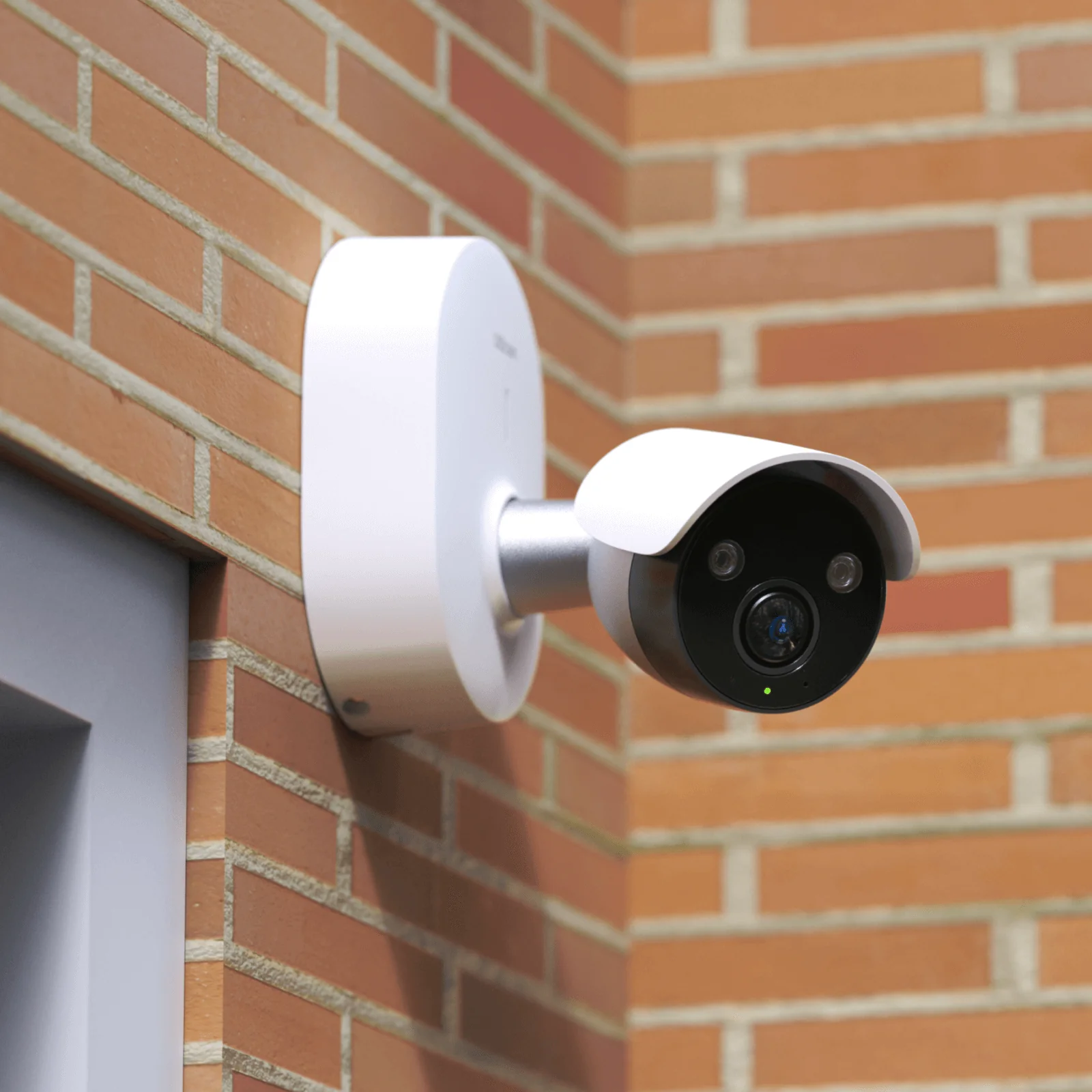
Using a home security camera with an SD card for local storage is a smart, budget-friendly way to ensure reliable, private footage storage without mandatory monthly cloud fees. This method allows you to keep crucial video recordings directly at home, providing peace of mind and continuous operation even during internet outages. It’s a highly recommended approach for those seeking control over their home security data.
Why Bother with an SD Card Anyway?
In a world buzzing about “the cloud,” you might wonder if an SD card is a bit old-school. Not at all! Think of it as your personal, private vault. Here’s why using local storage is such a brilliant idea for your home security camera.
- No Monthly Fees: This is the big one. With an SD card, you make a one-time purchase. There are no recurring subscription costs to store your video clips, which can save you a significant amount of money over the life of your camera.
- Privacy is King: The footage is stored physically in your camera, inside your home. It’s not being uploaded to a remote server owned by a third-party company. For many people, this is a huge plus for privacy and peace of mind.
- Works Without Internet: If your Wi-Fi goes down, a cloud-based camera stops recording. A camera with an SD card? It keeps right on recording, ensuring you don’t miss a thing during an outage.
- Fast and Easy Access: Accessing footage directly from the SD card is typically faster than downloading it from the cloud, especially if you have a slow internet connection.
Expert Take: “I always advise clients to consider a hybrid approach. Use an SD card for continuous, reliable recording, and perhaps a low-cost cloud plan just for critical motion-alert clips. It gives you the best of both worlds: privacy and backup.” – Dr. Alistair Finch, Smart Home Security Analyst.
First Things First: Choosing the Right SD Card
Before you learn how to use home camera with SD card, you need the right tool for the job. Not all SD cards are created equal, and using the wrong one can lead to failed recordings and a lot of frustration.
Capacity: How Much Storage Do You Need?
This depends on your recording settings. A camera recording in 1080p HD will use about 1-2 GB of data per hour.
- 32GB: Good for a couple of days of motion-activated clips.
- 64GB: A popular choice, offering several days of continuous recording or weeks of motion clips.
- 128GB/256GB: Ideal if you want to store a week or more of continuous footage without it being overwritten.
Type and Speed: Look for “High Endurance”
|
Our Picks for the Best Home Camera in 2026
As an Amazon Associate, we earn from qualifying purchases.
|
||
| Num | Product | Action |
|---|---|---|
| 1 | Blink Mini 2 — Home Security & Pet Camera(s) with HD video, color night view, motion detection, two-way audio, and built-in spotlight — 1 camera (Black) |

|
| 2 | Ring Battery Doorbell | Home or business security with Head-to-Toe Video, Live View with Two-Way Talk, and Motion Detection & Alerts (newest model), Venetian Bronze |
|
| 3 | Kasa Smart Indoor Pan-Tilt Home Security Camera, 1080p HD Dog Camera w/Night Vision, Motion Detection for Baby & Pet Monitor, Cloud & SD Card Storage, Works w/ Alexa & Google Home, 2.4G WiFi (EC71) |
|
| 4 | 2K Cameras for Home Security-Outdoor/Indoor Camera for Dog/Cat/Pet/Nanny/Baby, Color Night Vision, White Light, Siren, 24/7 SD Recordings, Works with Alexa/Google Home, C1 (C1-White-2pack-2.4G) |
|
| 5 | TP-Link Tapo Pan/Tilt Security Camera for Baby Monitor, Pet Camera w/Motion Detection, 1080P, 2-Way Audio, Night Vision, Cloud & SD Card Storage, Works with Alexa & Google Home (Tapo C200) |
|
| 6 | Tapo TP-Link 1080P Indoor Security Camera for Baby Monitor, Dog Camera w/Motion Detection, 2-Way Audio Siren, Night Vision, Cloud & SD Card Storage, Works w/Alexa & Google Home C100 |
|
| 7 | WYZE Cam Pan v3, Indoor/Outdoor IP65-Rated 1080p Pan/Tilt/Zoom Wi-Fi Smart Home Security Camera with Color Night Vision, 2-Way Audio, Compatible with Alexa & Google Assistant, Free Expert Setup |
|
| 8 | WYZE Cam v4 (Latest Model), 2.5K AI Security Camera, Indoor/Outdoor Cameras for Home Security, Baby Monitor & Pet Camera, Vibrant Color Night Vision, No Subscription Required, Free Expert Help |
|
| 9 | Ring Outdoor Cam (Stick Up Cam) | Weather-Resistant Outdoor Camera, Live View, Color Night Vision, Two-Way Talk, Motion alerts, Works with Alexa | White |
|
| 10 | TP-Link Tapo 2K Pan/Tilt Security Camera for Baby Monitor, Dog Camera w/Motion Detection, 2-Way Audio, Siren, Night Vision, Cloud & SD Card Storage, Works with Alexa & Google Home, 2-Pack (C210P2) |
|
This is non-negotiable. Security cameras are constantly writing and rewriting data, 24/7. A standard SD card isn’t built for this and will fail quickly.
- Look for: Cards specifically labeled “High Endurance” or “For Video Monitoring.” These are designed for the constant workload.
- Speed Class: Aim for a card with at least a U3/V30 rating. This ensures it’s fast enough to write high-definition video without stuttering or dropping frames.
A Step-by-Step Guide: How to Use Home Camera with SD Card
Alright, you’ve got your camera and your shiny new high-endurance microSD card. Let’s get them working together.
- Power Down: Always, and I mean always, turn off and unplug your camera before inserting or removing an SD card. Messing with it while it’s powered on can corrupt the card or even damage the camera’s slot.
- Format the Card (The Right Way): This is a critical step many people skip. Formatting wipes the card and sets up the correct file system for your camera. While you can format it in a computer, the best practice is to format it inside the camera itself.
- Insert the card into your computer first if it’s brand new, just to make sure it’s working.
- Then, insert it into your powered-off camera.
- Power the camera on, open the camera’s app on your phone, and navigate to
Settings > Storage > SD Card. - Look for a “Format” or “Initialize” option. Tap it and let the camera do its thing. This ensures perfect compatibility.
- Find the SD Card Slot and Insert It: The slot is usually on the side, back, or bottom of the camera. Sometimes it’s hidden under a small cover. Gently push the microSD card in until you hear or feel a little click. It should sit flush and secure.
- Configure Your Recording Settings: This is where you tell the camera how you want it to use the SD card. Open your camera’s app and explore the storage settings. You’ll usually see these options:
- Continuous Recording: The camera records 24/7. This provides the most complete coverage but uses the most storage.
- Motion-Activated Recording: The camera only records when it detects movement. This saves a ton of space and makes it much easier to find important events. This is the recommended setting for most homes.
- Scheduled Recording: You can set specific times for the camera to record, like overnight or when you’re at work.
- Enable Loop Recording: This feature is essential. When the SD card gets full, loop recording automatically overwrites the oldest footage to make room for the new. Without this, your camera would just stop recording once the card is full. Make sure this is turned on!
- Viewing Your Footage: You have two main ways to see what your camera has recorded:
- Through the App: The easiest method. Most camera apps have a “Playback” or “Timeline” feature. You can scroll through a visual timeline and view any recorded clips directly on your phone, from anywhere.
- On a Computer: Power down the camera, carefully remove the SD card, and insert it into an SD card reader connected to your computer. You can then copy the video files directly to your hard drive for permanent backup.
It’s worth noting that while you are configuring these settings, it’s a good practice to ensure all aspects of your device are current. To understand more about this, learning how to update home camera firmware is a step that ensures your camera runs smoothly and securely.
Making the Most of Your Local Storage
You’re all set up, but let’s talk strategy. How can you optimize your setup for maximum security and efficiency?
- Find the Sweet Spot for Video Quality: Recording in 4K is amazing, but it eats up storage like crazy. For most situations, 1080p offers a fantastic balance of clear detail and reasonable file sizes.
- Fine-Tune Motion Sensitivity: If your camera is recording every time a leaf blows by, your SD card will fill up with useless clips. Go into your app’s motion detection settings and adjust the sensitivity or set up specific “activity zones” to focus only on important areas like doorways and windows.
- Check In on Your Card: Once a month, just pop into the app and check the SD card’s status. Make sure it’s still recording and doesn’t have any errors. High-endurance cards are tough, but they don’t last forever.
What About Privacy and Security?
Using an SD card is inherently more private than the cloud, but you still need to be smart.
- Physical Security: Your footage is on a physical device. If a burglar steals your camera, they steal your footage. This is why placing indoor cameras in discreet locations and outdoor cameras out of easy reach is so important.
- Strong Passwords: The biggest security risk isn’t the SD card; it’s someone hacking into your camera’s live stream. Use a long, complex, unique password for your camera account and enable two-factor authentication (2FA) if it’s offered.
Frequently Asked Questions (FAQ)
1. What size SD card do I need for my home camera?
For most users, a 64GB high-endurance card is the perfect starting point. It offers a great balance of storage capacity and price, typically holding several days of continuous recording or weeks of motion-triggered clips in 1080p.
2. How long will a 128GB SD card record for?
It depends on the video quality (bitrate), but as a general rule, a 128GB card can hold approximately 6-10 days of continuous 1080p footage. If you set it to record only on motion, it could last for a month or more.
3. Should I choose SD card or cloud storage?
Ideally, both! An SD card gives you free, private, and internet-free local recording. Cloud storage provides a secure, off-site backup in case the camera is stolen or damaged. If you have to choose one, an SD card is the most cost-effective and private option.
4. Can I still view my camera live if I’m only using an SD card?
Absolutely! The SD card is only for storing recordings. You can still access the live video feed from your camera through its app from anywhere in the world, as long as both your phone and camera are connected to the internet.
5. Do I really need a “high-endurance” card?
Yes, 100%. A standard SD card is designed for occasional use, like in a digital camera. A security camera writes data constantly. A regular card will wear out and fail in a matter of months, often without warning, leaving you with no recordings when you need them most.
Your Home, Your Security, Your Control
There you have it. Learning how to use home camera with SD card puts the power of home security firmly in your hands. It’s a reliable, private, and incredibly cost-effective way to ensure you always have a record of what’s happening at your home. By choosing the right card, setting it up correctly, and enabling features like loop recording, you’ve just built a robust security system that works for you, on your terms. Now you can rest a little easier knowing your digital watchdog is always on duty.
Smart home that does not lock you in
Free PDF — protocol compatibility matrix for 30 hubs and devices.
I was so tired of paying monthly cloud fees for my old security camera system. Switching to a camera that uses an SD card for local storage has been a game-changer. It’s exactly as described – a one-time purchase and no more recurring costs. The peace of mind knowing my footage is stored privately at home is invaluable.
I appreciate the focus on continuous operation even during internet outages. That was a major selling point for me when I chose my new camera. It’s great to know my recordings are still happening, even if my Wi-Fi goes down. The setup was pretty straightforward, and I haven’t had any major issues.
The idea of a ‘personal, private vault’ for my security footage really resonated with me. I’m not comfortable with all my data being in the cloud, so having direct control over my home security data via an SD card is perfect. It was super easy to get started, and the quality of the recordings is excellent.
I got a camera specifically for the local storage option, and while it’s good to avoid monthly fees, I wish the SD card capacity was a bit larger. I find myself having to check and clear it more often than I’d like, especially with a lot of motion detection events. It’s a minor inconvenience, but something to consider.